
Contents
Click here for TL;DR
- Most designers run three separate tools to build one tech pack: Illustrator for sketches, Excel for specs, and something else for communication. None of them talk to each other.
- A few tools try to bridge that gap. We've included PLMBR, Tech Pack Wizard, Backbone PLM, Centric PLM, and Onbrand PLM.
- They all connect with Illustrator, but that’s not where the real difference lies. The difference is in what happens after your sketch leaves Illustrator, how your data is structured, updated, and shared.
- The right choice depends less on “features” and more on how your workflow actually runs today.
Most designers don’t struggle with tech packs. They struggle with how many places a tech pack lives before it becomes final.
In almost every team I’ve worked with, the workflow looks like this: sketches in Illustrator, measurements in Excel, comments in email, and a final tech pack as a PDF that somehow needs to reflect all of it.
And somewhere between version 3 and version 9, things start breaking. Not because designers don’t know what they’re doing. But because none of these tools was designed to work together. In fact, after reviewing factory-bound tech packs across teams, one pattern shows up again and again. Most errors don’t come from design decisions. They come from tool handoffs.
So naturally, Illustrator integrations sound like one solution. Several tools now claim to sync with Illustrator, but they mean very different things by that. After reading this, you will know which is which and which one fits your actual workflow.
What "Syncing with Adobe Illustrator" Actually Means
Most tools today can connect with Illustrator in some form. But that doesn’t mean they solve the same problem.
Some tools focus on helping you move sketches out of Illustrator faster. Others connect Illustrator to a larger system where your tech packs, product data, and communication live together.
So instead of thinking in terms of “types of sync,” it’s more useful to think about what you need after the sketch is created. Are you just trying to reduce manual steps? Or are you trying to manage everything that happens after updates, versions, collaboration, and production?
That’s where these tools start to differ.
The 5 Tech Pack Tools That Actually Work with Adobe Illustrator
1. PLMBR: Best for Connecting the Entire Product Workflow
PLMBR is a powerful fashion project management tool centred around tech pack development, serving as a single source of truth for designers and manufacturers. It offers essential PLM capabilities like quick design tool integrations, component libraries, reports, communication, and custom sections, along with a dedicated manufacturers' hub for seamless vendor onboarding.
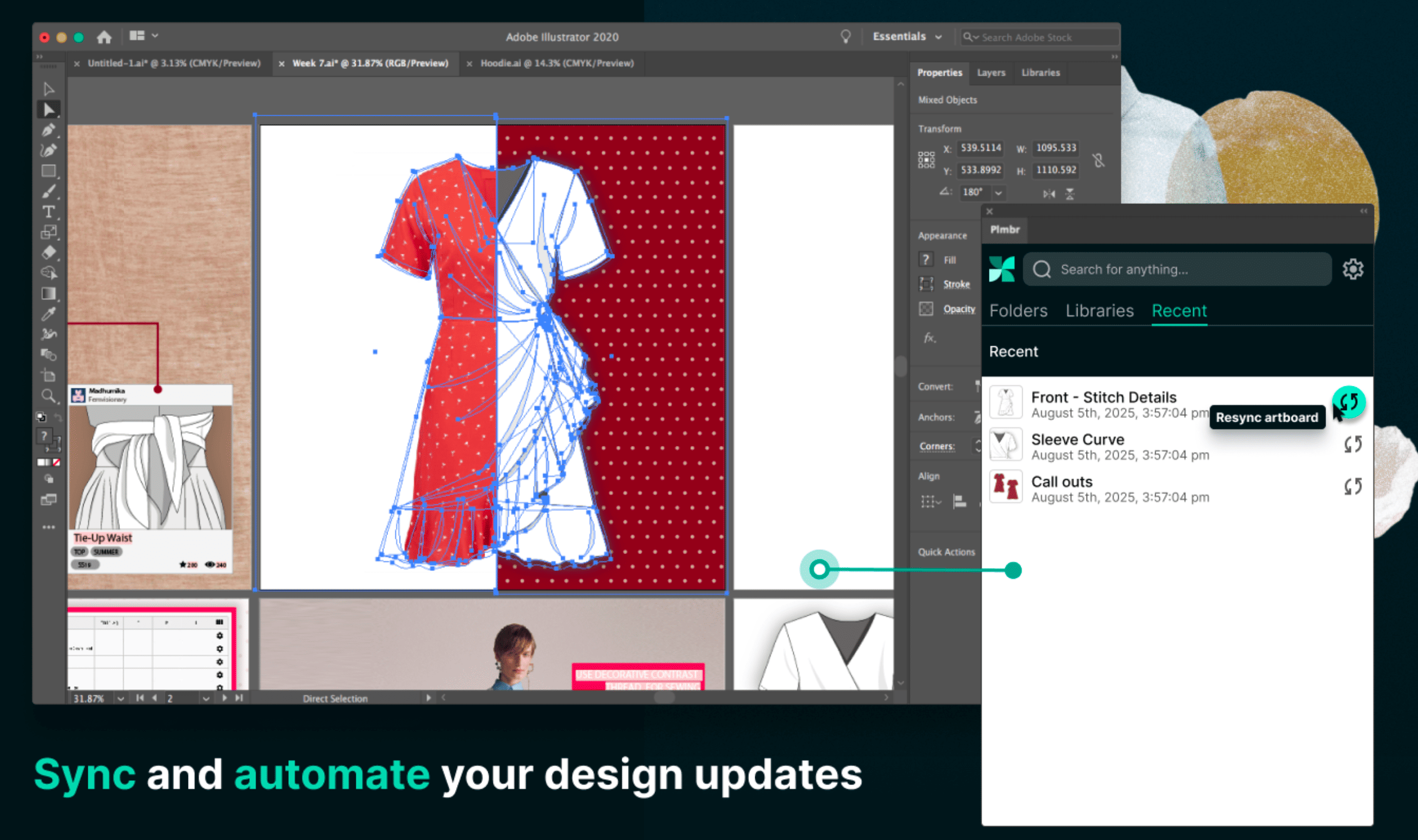
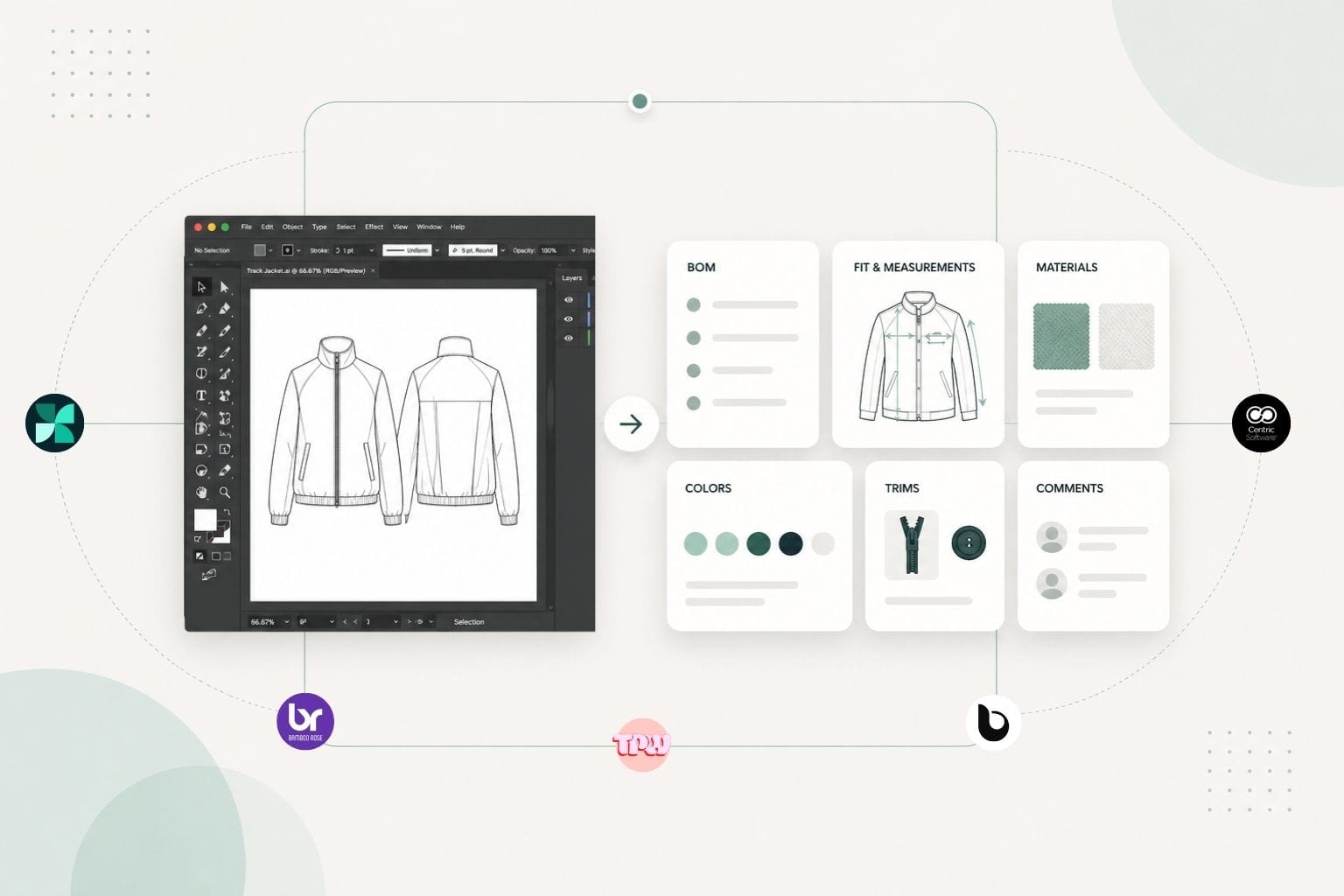
Adobe Illustrator integration is where it starts getting useful in your day-to-day workflow. If you’re designing in Illustrator, you don’t have to go through the usual export, rename, upload cycle anymore. You can send your .ai artboards directly into PLMBR using the plugin, and they land straight inside your workflow.
From there, you build everything around that sketch, your measurement specs, grading, BOMs, costing sheets, and fit comments. Basically, all the things that usually end up scattered across different files now sit in one place, tied to that design.
And when your design changes (which it will), you just sync it from Illustrator. It updates the existing sketch inside the same tech pack, so you’re not duplicating work or juggling multiple versions across folders.
The integration itself is pretty straightforward; you keep designing in Illustrator, and PLMBR handles everything that comes after. Once your sketch is in, you can organize product data, build libraries, and collaborate with your team and your manufacturer, so they’re looking at the same version you are.
Best for: If you’re designing in Illustrator and starting to feel the friction of managing specs, updates, and communication across too many places, this setup gives you a more structured way to handle all of that.
Worth knowing: The Illustrator integration works one way, from Illustrator into PLMBR. You’ll still make your design changes in Illustrator, while PLMBR handles the tech pack, collaboration, and tracking around it.
2. Tech Pack Wizard: Best for Staying Entirely Inside Illustrator
Tech Pack Wizard is an Illustrator-native plugin that lets you build the entire tech pack without ever leaving the .ai file.
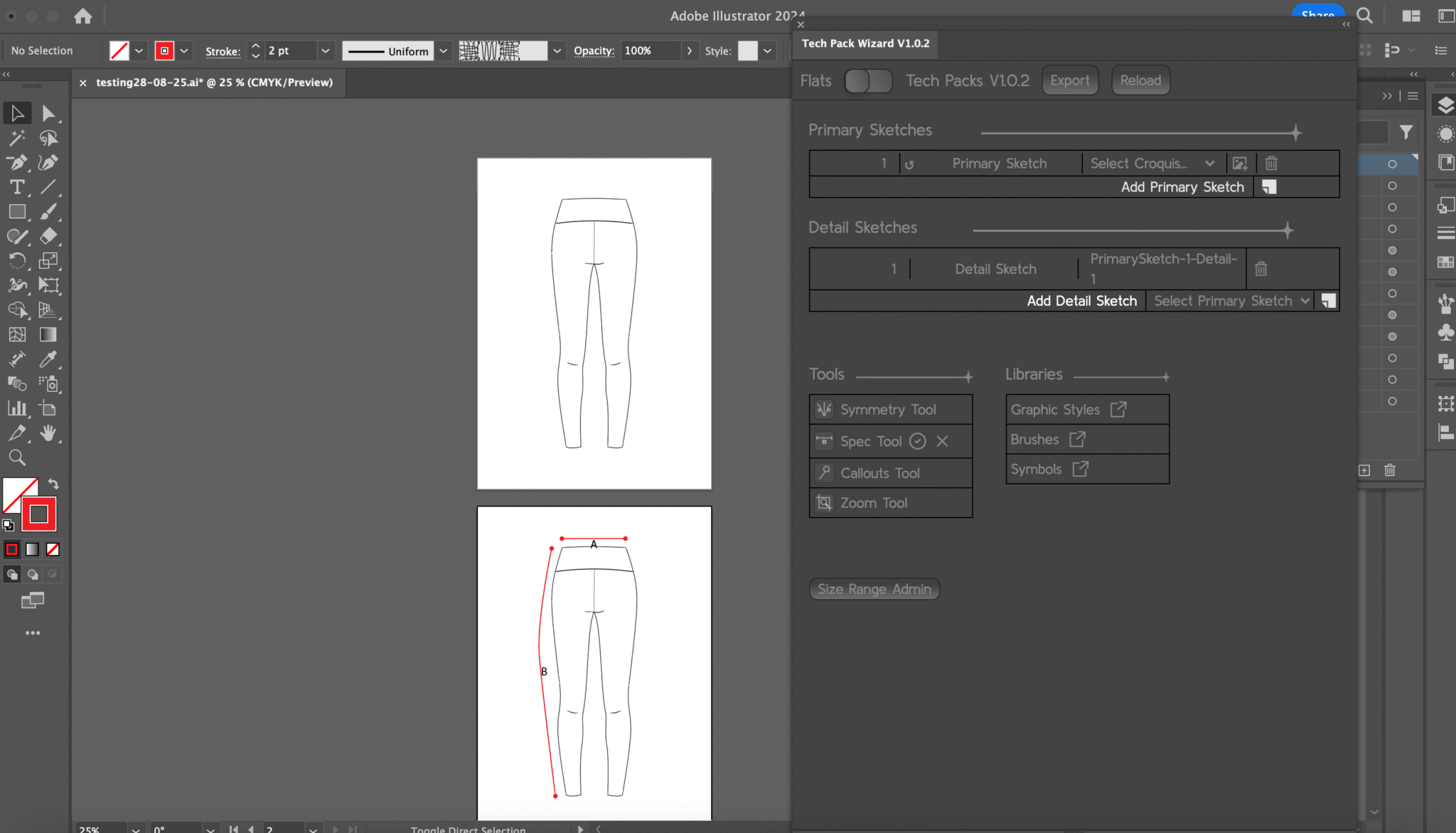
If you prefer to stay inside Illustrator, this setup feels straightforward. When you update your primary sketch, linked detail sketches update automatically. Callouts can place themselves, layouts adjust without manual resizing, and croquis templates help maintain proportions across figures.
If you are a solo designer who owns every file and wants zero platform overhead, this is EXACTLY the right setup. For a team that needs shared libraries, BOM management, or approval workflows, it falls short.
Best for: Freelance designers and solo operators who want to stay in Illustrator and avoid subscription-based platform dependencies.
Worth knowing: No multi-user collaboration, no reusable BOM libraries, and no PLM connection. Large, multi-style packs can result in heavy .ai files.
3. Backbone PLM (Now Under Bamboo Rose): Best for Mid-Size Brand Teams
Backbone PLM, now under Bamboo Rose, launched its Adobe Illustrator integration in February 2022. You can sync your .ai files into Backbone with one click, update sketches without leaving Illustrator, and access style libraries through the plugin. Changes move across the platform, helping keep teams aligned on the latest version.
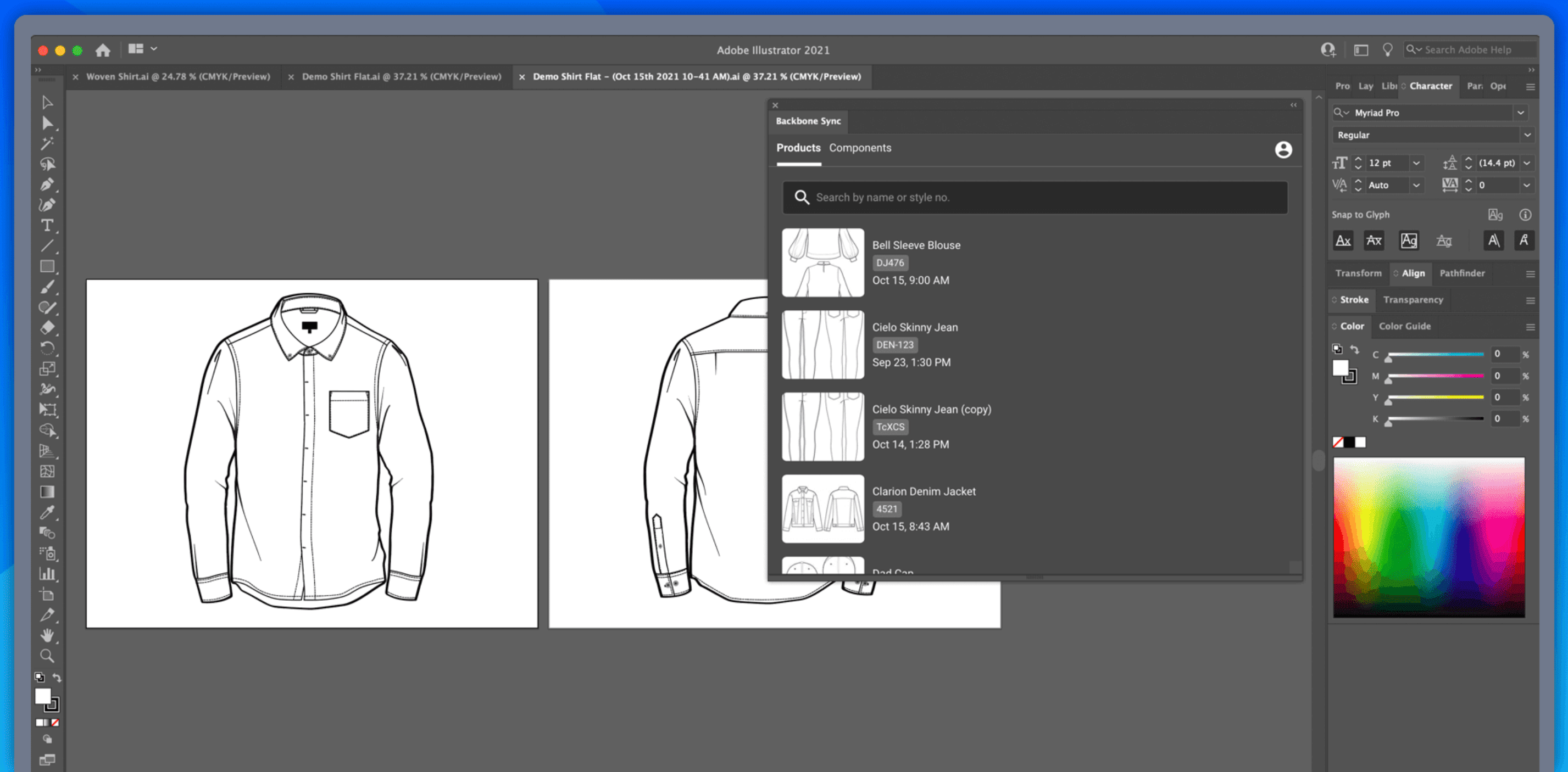
Backbone covers full PLM functionality including costing, vendor management, and sample tracking.
Best for: Mid-size apparel brands with in-house design and development teams that need PLM-level control alongside Illustrator connectivity.
Worth knowing: Requires a full PLM subscription. Per-user pricing adds up for larger teams.
4. Centric PLM: Best for Established Enterprise Workflows
Centric PLM is one of the more widely used PLM platforms in fashion, especially at the enterprise level. If you’re working in a larger organization, the Illustrator connection here is less about convenience and more about integration into an existing system.
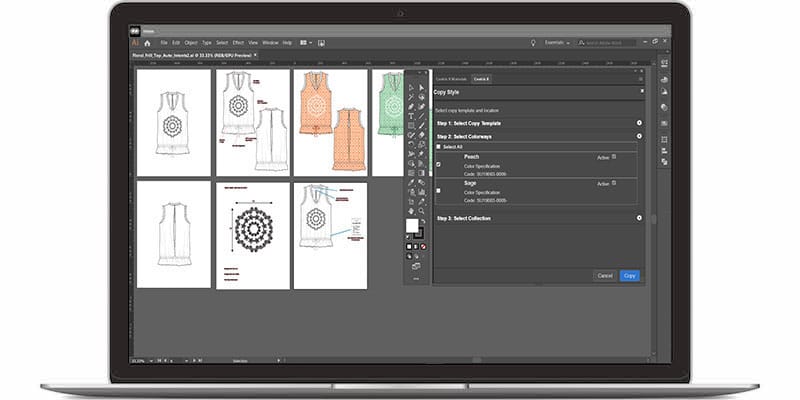
Designers can connect their Illustrator work to Centric’s PLM environment, where product data, materials, colors, and specifications are already structured and shared across teams. So instead of managing design and development separately, Illustrator becomes part of a broader workflow that includes sourcing, costing, and production.
This kind of setup is usually less about speed and more about consistency, making sure that what’s being designed is always aligned with the rest of the product data.
Best for:
Large brands with established PLM systems and cross-functional teams working on the same product lifecycle.
Worth knowing:
Enterprise-level setup and implementation. Not designed for small teams or quick onboarding.
5. Onbrand PLM: Best for Growing Brands That Want Fast Onboarding
Onbrand PLM announced its Adobe Illustrator plugin in January 2025. You can sync sketches, patterns, and construction details directly into the PLM, with updates reflected in connected tech packs. Raw .ai files can also be shared with manufacturers through the platform.
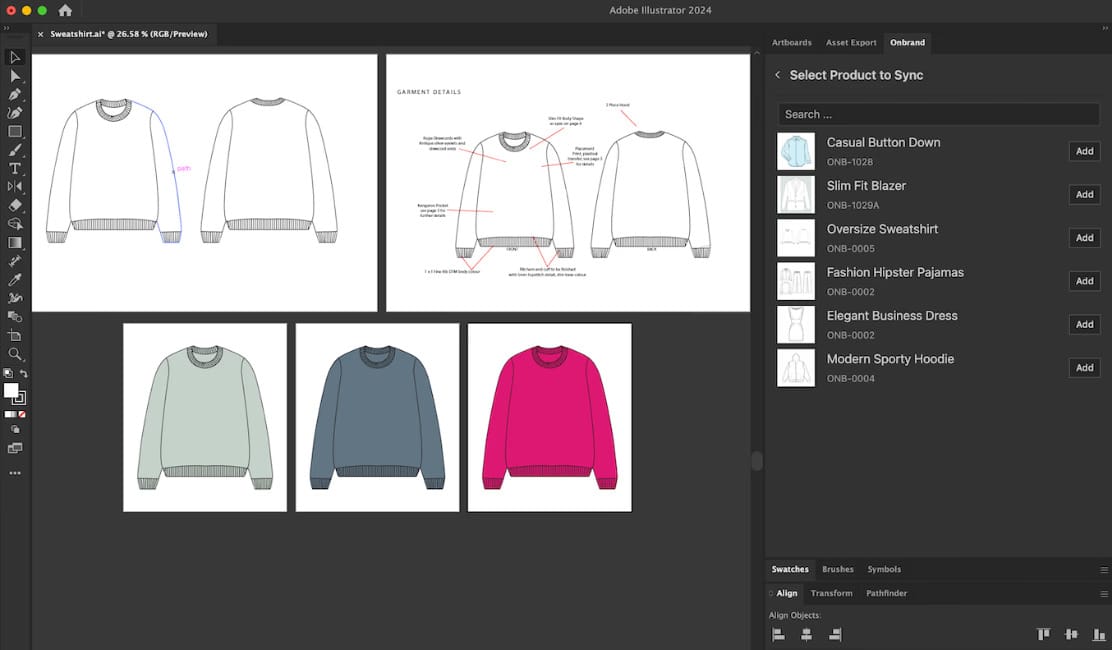
Full implementation takes two to four weeks. Onbrand customers report a meaningful operational efficiency boost after implementing the plugin, and brands adopting the platform more broadly see a significant reduction in tech pack creation time.
Best for: Growing fashion brands that want a modern PLM with fast onboarding and an active Illustrator connection.
Worth knowing: Cloud-based and subscription-dependent. Not designed for offline or local-only workflows.
How to Choose the Right Tool
At this point, the difference between these tools isn’t whether they connect with Illustrator, they all do. What actually matters is how that connection fits into your workflow.
If you’re mostly working on your own, you might just need something that helps you move faster without adding more tools.
But if you’re dealing with multiple styles, updates, or people, the challenge becomes less about creating the tech pack and more about keeping everything aligned as things change.
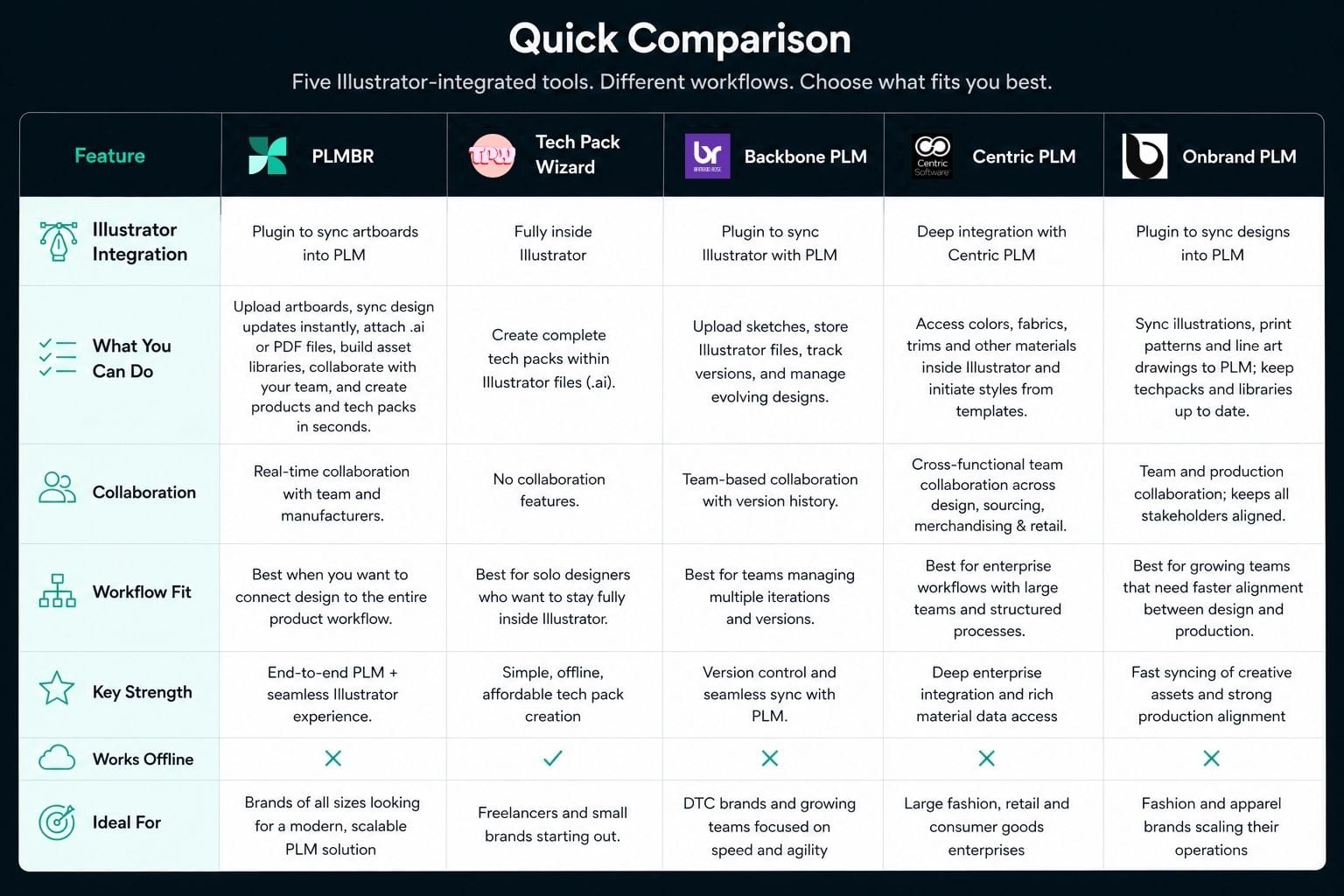
That’s where more structured systems start to make sense. The table below breaks this down in a simpler way.
Other basic FAQ's
1. What is a fashion PLM and do I need one if I already use Illustrator?
A fashion PLM is a system that helps you manage product data, tech packs, and communication in one place. If you are only using Adobe Illustrator, you are mainly handling design. The rest of the information usually sits across Excel and other tools. This can work at a small scale, but it becomes harder to manage as styles and revisions increase. That is where tools like PLMBR start to help by organizing everything around your designs.
2. How does Illustrator integration work in a PLM system?
You continue designing in Illustrator as usual. Once your sketch is ready, you send it into the PLM using a plugin. The sketch becomes part of a tech pack where you add specs, BOMs, and other details. If the design changes, you update it again from Illustrator and it replaces the previous version inside the same tech pack.
3. When should I move from an Illustrator-based workflow to a PLM system?
If your workflow is still easy to manage with Illustrator and a few files, you can continue as is. But when you start dealing with multiple versions, frequent updates, or coordination with others, things become harder to track. That is usually when a PLM system like PLMBR starts to make more sense.
4. Do Illustrator-integrated tech pack tools work offline?
Some tools do. If everything stays inside Illustrator, like with Tech Pack Wizard, you can work offline since the tech pack is part of the .ai file. Most PLM tools, including PLMBR, are cloud-based because they are built for collaboration. You can design offline, but syncing and managing product data requires an internet connection.
5. Can a PLM replace Excel in tech pack workflows?
In many cases, yes. Excel is often used to manage specs and BOMs alongside Illustrator. A PLM brings that information into one place so your tech pack and product data stay connected. Tools like PLMBR can also import data from Excel, so you do not have to start from scratch.
Conclusion
The tools are there, and most of them connect with Illustrator in some way. But that’s not really the decision you’re making. The real question is what happens after your sketch is done.
If your workflow is simple, a lightweight setup might be enough to remove a few manual steps. But if you’re managing multiple styles, teams, and updates, the challenge is no longer Illustrator, it’s everything around it.
That’s where tools like PLMBR start to make more sense. They don’t just connect to Illustrator, they help you organize what comes after. And in most growing teams, that’s where the real bottleneck usually is.