

Contents
Click here for TL;DR
- Excel works fine for your first season. The version control problem appears around 10 to 15 active styles, when filenames like FINAL_jacket_v3_REVISED.xlsx become their own management task.
- You do not need to migrate your old files. The right approach is a clean start: rebuild styles in a dedicated tech pack editor when they come up for revision, not all at once.
- Images are the biggest practical pain point in Excel tech packs. They float on top of cells, shift when rows resize, and break layout on export because Excel was never designed to hold them.
- Version control in Excel depends entirely on naming discipline. One lapse and you lose track of what the factory actually received, and at that point you are not managing a garment, you are managing a folder.
- A solo founder can rebuild one active style in roughly two to three hours, including sketch import and full table entry.
Open your downloads folder and count how many versions of the same style exist. There is probably a FINAL, a FINAL_v2, a FINAL_v2_REVISED, and a file named something like jacket_FACTORY_SEND that you are no longer completely sure is the most current one.
You know a measurement changed somewhere between v2 and the revised version. You just cannot remember if the factory got the updated file or the one before it.
That situation is not a personal failure. It is what Excel looks like when it is working exactly as designed, which is to say, it was never built for version-tracked, image-heavy, factory-facing technical documents.
Excel is a general-purpose spreadsheet. A tech pack is a visual, revision-tracked document that needs to communicate construction intent precisely to a manufacturing partner who is not in the room with you. Those are two different jobs, and using the same tool for both works right up until it stops working completely.
The mistake most founders make at this point is assuming the fix requires a migration. They picture hours of copying BOM tables, re-entering measurements, and somehow importing years of Illustrator sketches into an unfamiliar system. That picture is wrong. Moving your tech pack workflow off Excel is not a project. It is an afternoon, and most of your old files never move at all.
Why Excel Starts Failing at 10+ Styles
Excel does not fail immediately. It fails progressively, and the breaking point arrives around 10 to 15 active styles per season, when the cost of managing files begins to exceed the cost of building a product.
If you are not sure whether you are at that point yet, these are the signs that your spreadsheet workflow has hit its ceiling that are worth checking first.
The Version Filename Problem
The FINAL_v3_REVISED naming pattern is a version control system, just a manual one.
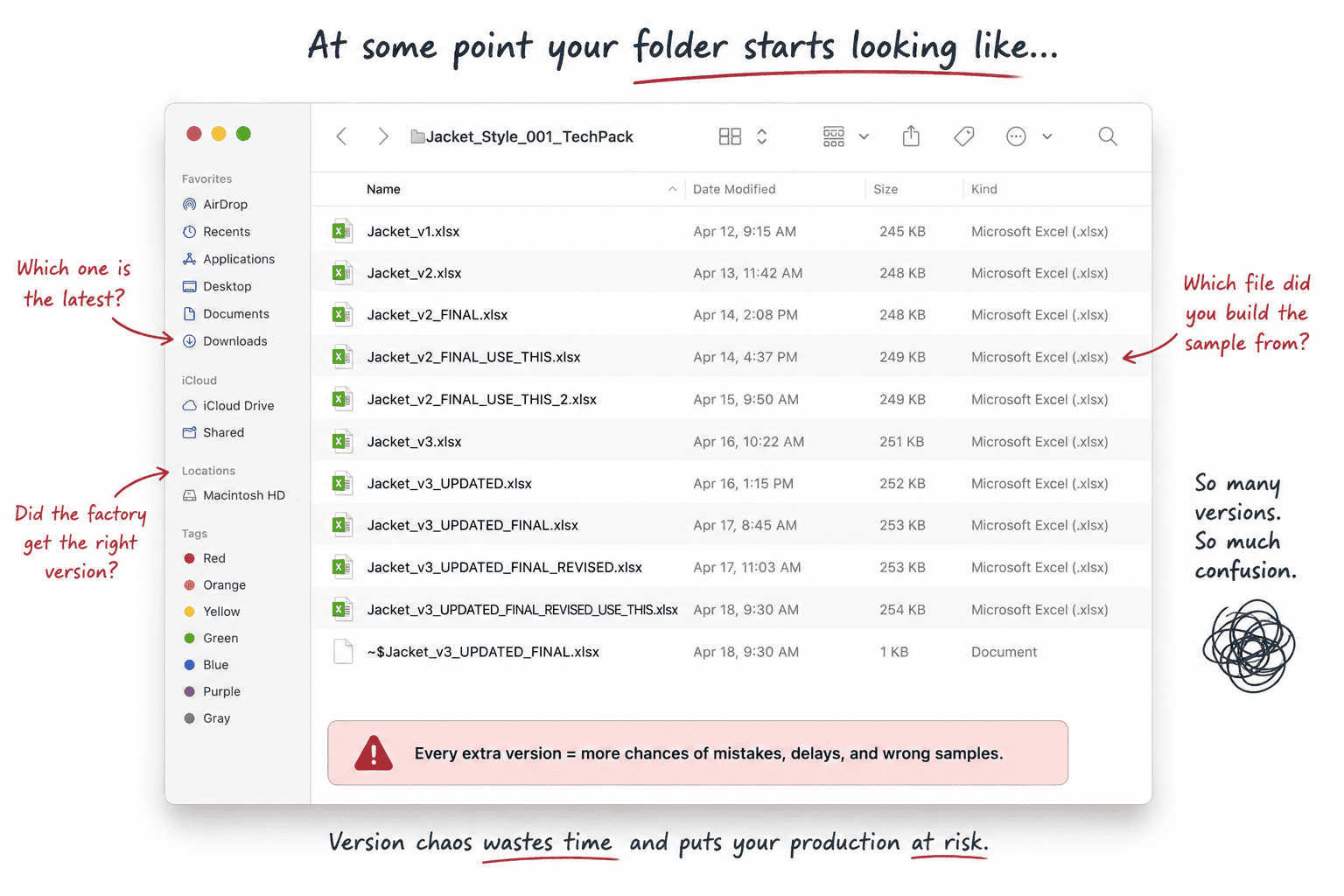
It requires everyone in the workflow to apply naming discipline every single time a file is touched, saved, and sent. A file trail reading jacket_FINAL, then jacket_FINAL_v2, then jacket_FINAL_v2_REVISED represents questions you can no longer answer from memory: what changed between versions, which file was last sent, and whether the factory is cutting fabric to the measurements you actually signed off on.
One person saves without updating the filename, one person sends from the wrong folder, and the chain breaks. For tech packs, a broken version chain is not a data error. It is a wrong sample, a delayed production cycle, and a conversation with your factory that nobody wants to have.
The downstream cost of sending the wrong version to a factory is documented in detail here.
The Image Problem
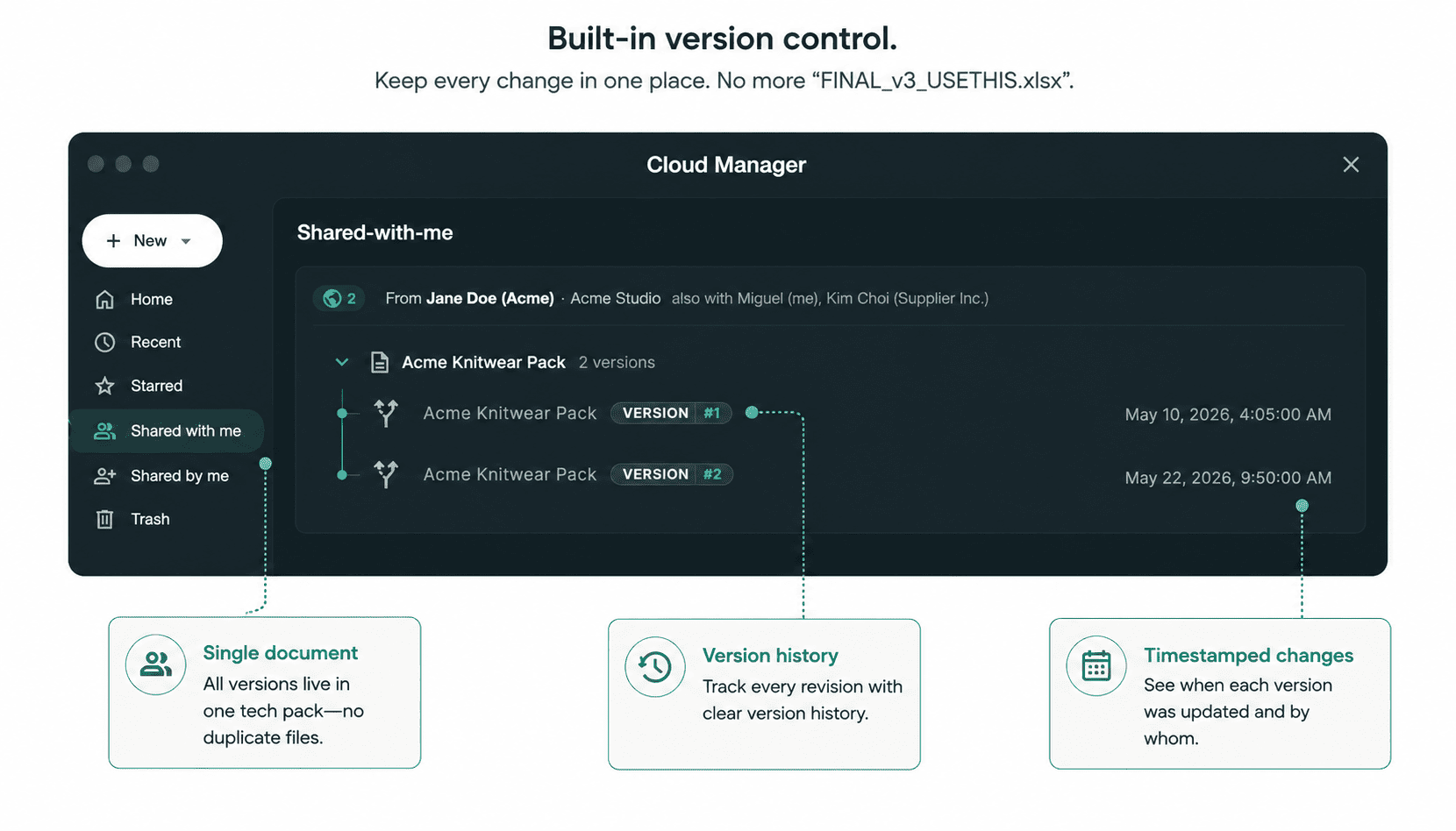
Excel treats images as floating objects layered above the cell grid, not as content embedded within the layout.
When you paste a sketch into a cell, it sits on top of the cells like a sticker on glass. Resize a row, change the zoom level, or adjust print margins, and the sketch drifts. The layout you built carefully on your screen does not survive the journey to the factory's printer. The sketch is the most important element in a tech pack, and Excel is the worst possible container for it.
The Reuse Problem
Every new season, you rebuild from scratch. BOM headers, POM table structures, colorway blocks, and construction note sections all get recreated manually because Excel has no reuse layer.
What felt manageable for two styles in season one becomes compounding invisible labor by season three, and by then, you have accumulated a folder of inconsistently structured files that make the version problem significantly worse.
For a closer look at why Excel falls short for POM and BOM management specifically, this breakdown goes deeper.
This Is Not a Migration
A data migration moves all existing records from one system to another in a single event. That is not what this is, and framing it that way is exactly what stops most founders from making the move. Switching is a format upgrade you apply one style at a time, starting with your next active revision.
Your existing Excel tech packs are functional records.
They document what was built, what was sent, and what was approved. When a style comes up for its next revision, that is the natural moment to rebuild it in a dedicated tool, because you would be opening and editing the file anyway.
By the end of one to two seasons, your entire active library is in the new format, and the transition happened in the background. The old Excel files stay as archives. You just stop adding new work to them.
What a Dedicated Tech Pack Editor Actually Is
A dedicated tech pack editor is a desktop application that combines the structured data entry of a spreadsheet with the visual layout of a design tool, built specifically for factory-ready technical packages. It is not a PLM.
PLM software manages multi-team workflows, ERP integrations, and supply chain data across entire organizations, and requires implementation and onboarding to match. A tech pack editor downloads in minutes, requires no sign-up, and works offline.
Your files live on your machine in a portable format, the same sense of local ownership you had over your Excel files, except the format is built for what you are actually doing.
Browser-based tech pack tools store your work on their servers, which means file access depends on their uptime and your internet connection. A local-first editor stores your work on your machine, the same way your Illustrator files do.
A 20-Minute File Audit Before You Open Anything New
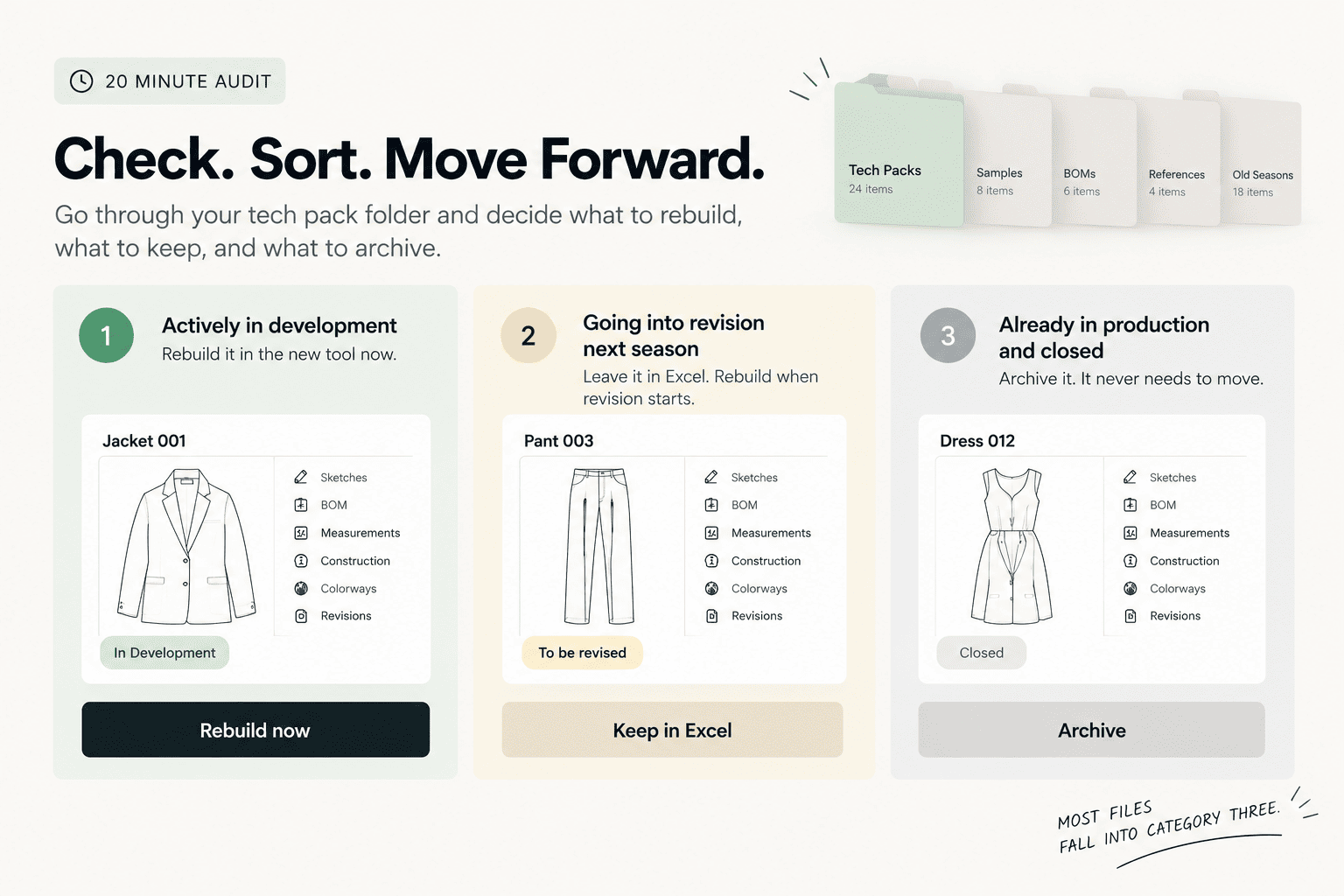
Before downloading anything, spend 20 minutes going through your tech pack folder and answering three questions for each style: Is this actively in development? Does it have multiple saved versions with different names? Do you know right now which version was last sent to the factory? Styles where you hesitate on that third question are your first rebuilding candidates. Everything else gets sorted by this rule:
- Actively in development this season: Rebuild it in the new tool now.
- Going into revision next season: Leave it in Excel. Rebuild when revision starts.
- Already in production and closed: Archive it. It never needs to move.
Most files fall into category three. The anxiety about all your old files dissolves once you work through the list.
How to Rebuild One Style in an Afternoon
Pick the style with the messiest version history. That one goes first, because it is where the pain of the current system is most visible and where the value of the new one will be most immediately obvious.
Step 1: Download the app and choose a template.
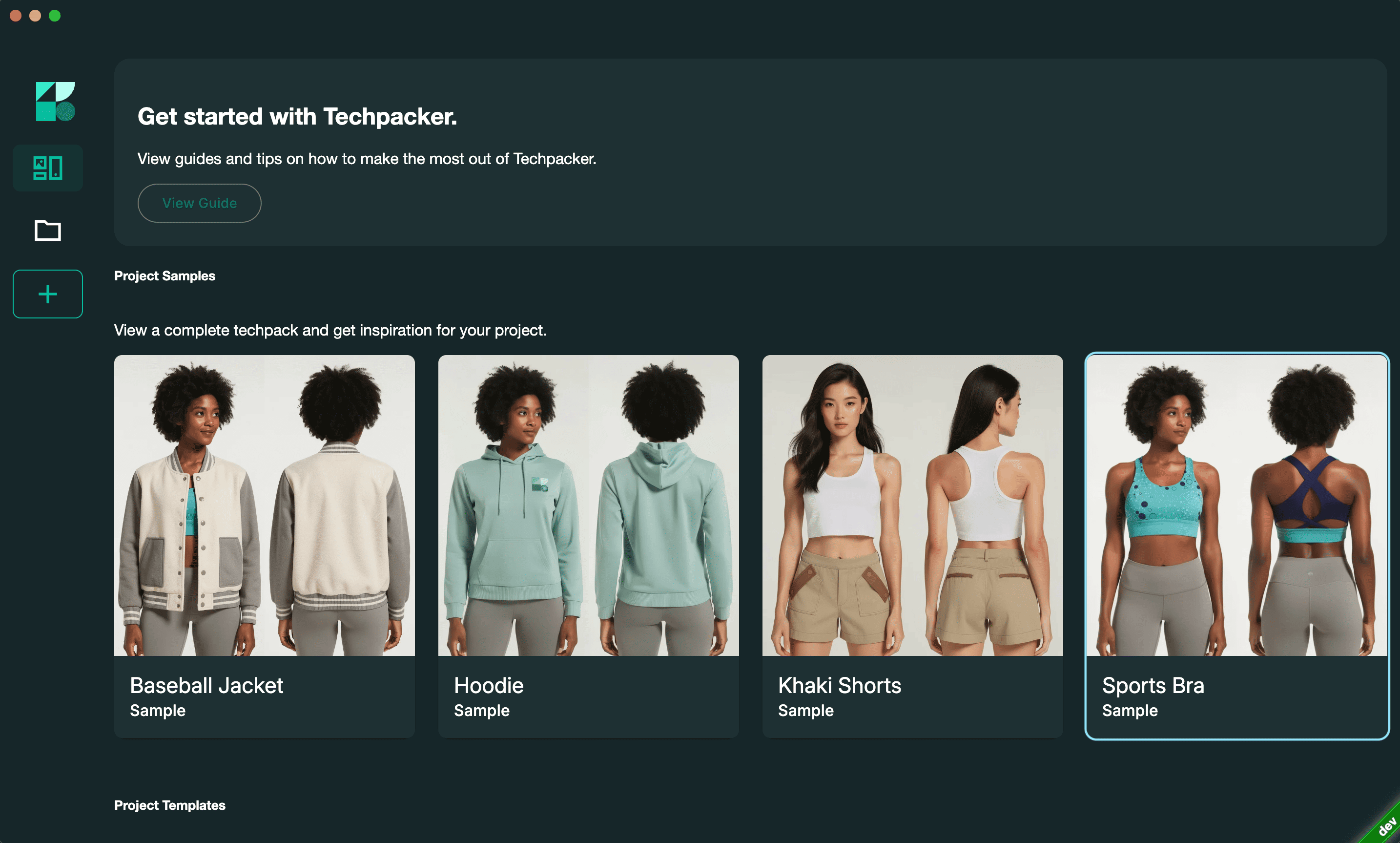
No sign-up required. Open Techpack Builder and select a template matching your garment type. Apparel, footwear, and accessories are covered. The template provides the full section structure: cover page, tech sketch, BOM, POM, and construction notes. You are populating an existing structure, not building one.
Step 2: Export your sketch from Illustrator.
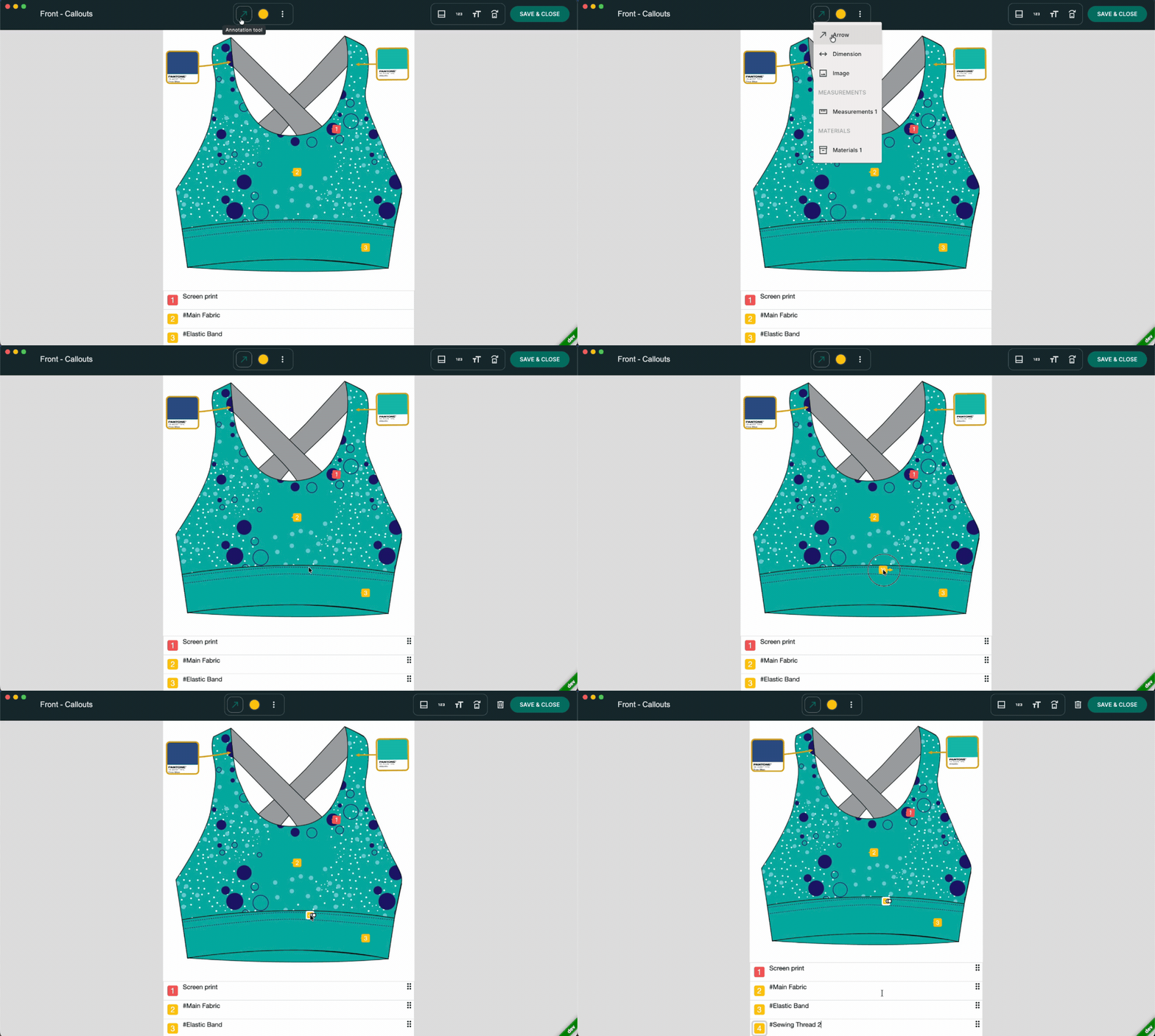
Export the flat sketch as a PNG or JPG at high resolution. Drag the exported image into the sketch block, and it snaps to the canvas with no cell sizing required. Techpack Builder does not use an Illustrator plugin. The workflow is: create in Illustrator, export the sketch, import that export. Your Illustrator setup does not change.
Step 3: Rebuild the BOM and POM tables
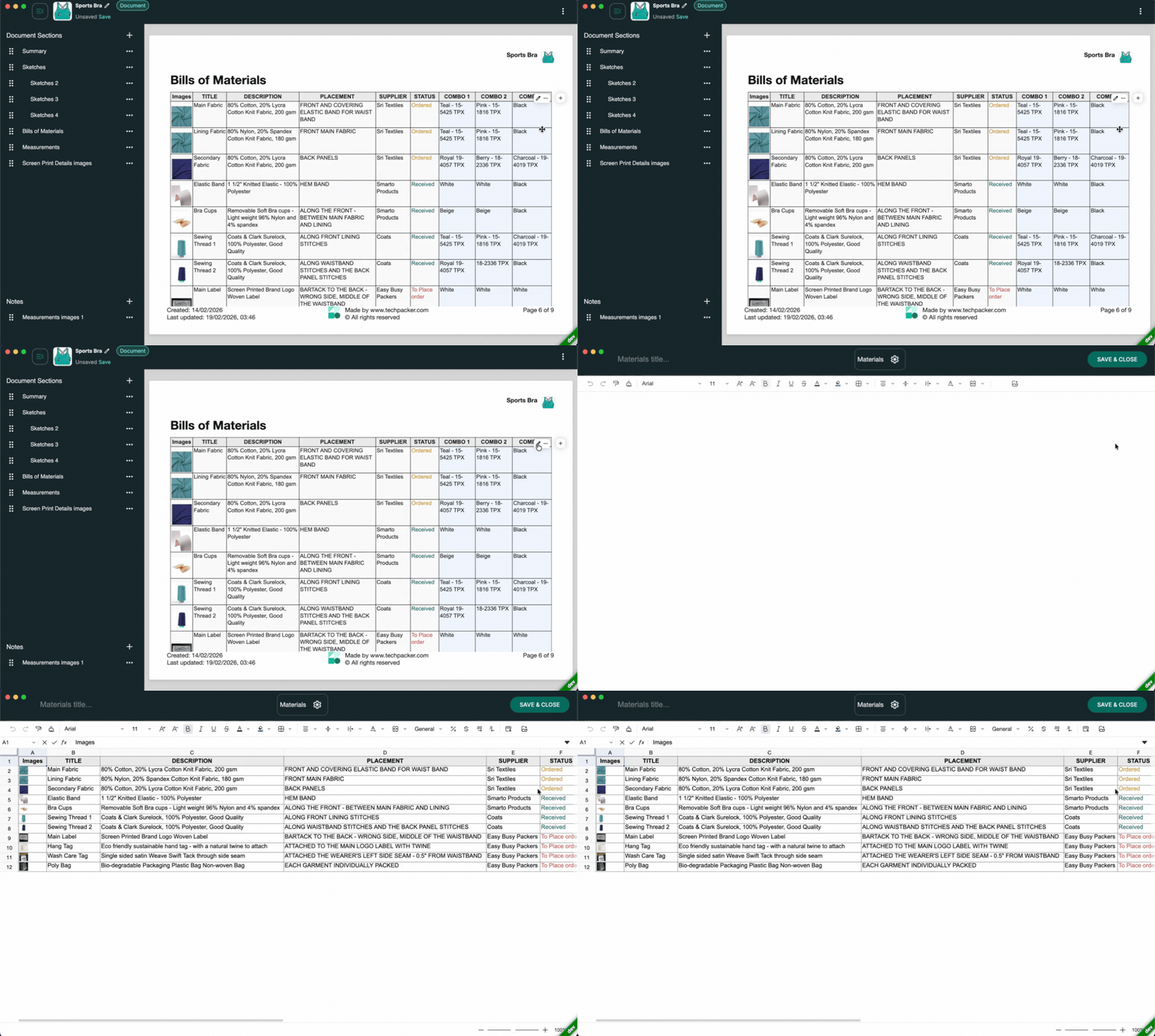
Open your Excel file for reference and copy BOM rows and POM measurements into the corresponding blocks. For a jacket with 15 to 20 BOM entries and 20 to 25 POM specs, this takes roughly 45 minutes.
If you want a visual reference while doing this, the step-by-step tech pack walkthrough covers the exact sections.
Step 4: Add construction notes and colorway details
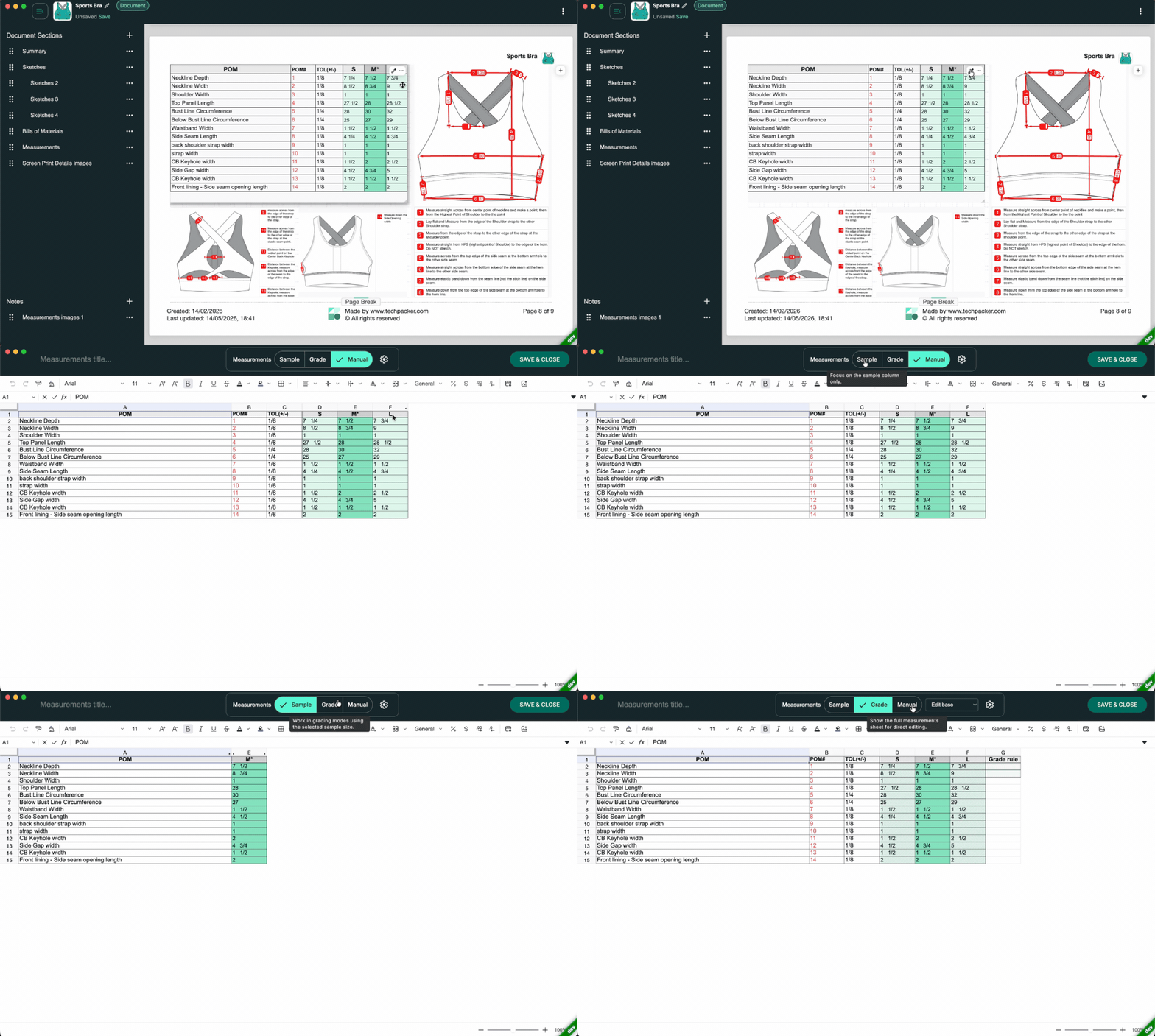
Any instructions living in sticky notes, email threads, or a separate Excel tab belong here. Color callouts, stitch type, seam allowances, and factory-specific notes go in as text blocks alongside the sketch, visible in context rather than buried somewhere a factory might miss.
Step 5: Save the .tp file and export a .tpv for the factory
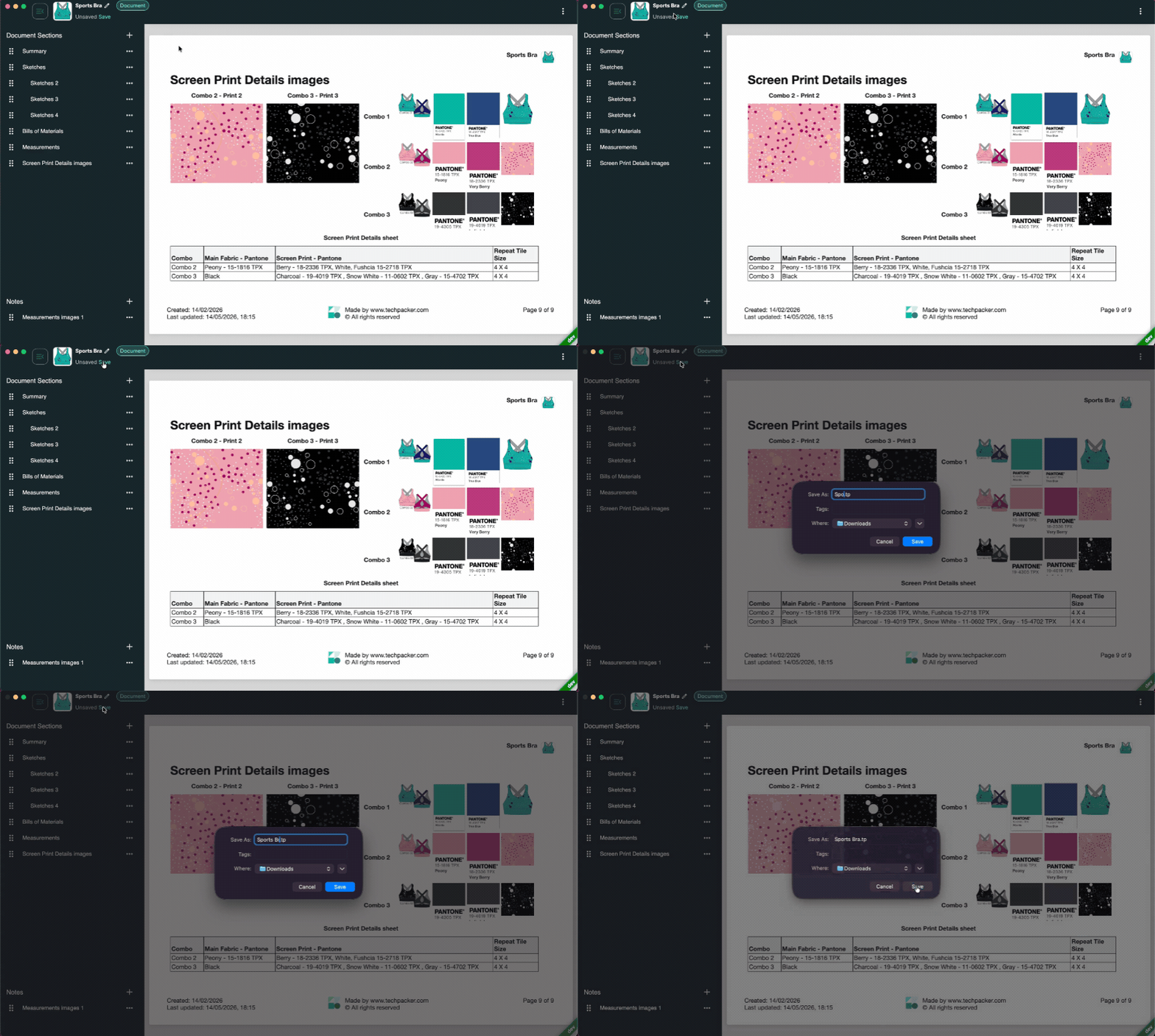
The .tp file is your working copy. The .tpv is a read-only, timestamped export built for factory sharing, the format you send instead of FACTORY_SEND.xlsx. For factories that only accept PDFs, one-click export produces a print-ready file in under a minute.
How the .tpv System Replaces Your Naming Convention
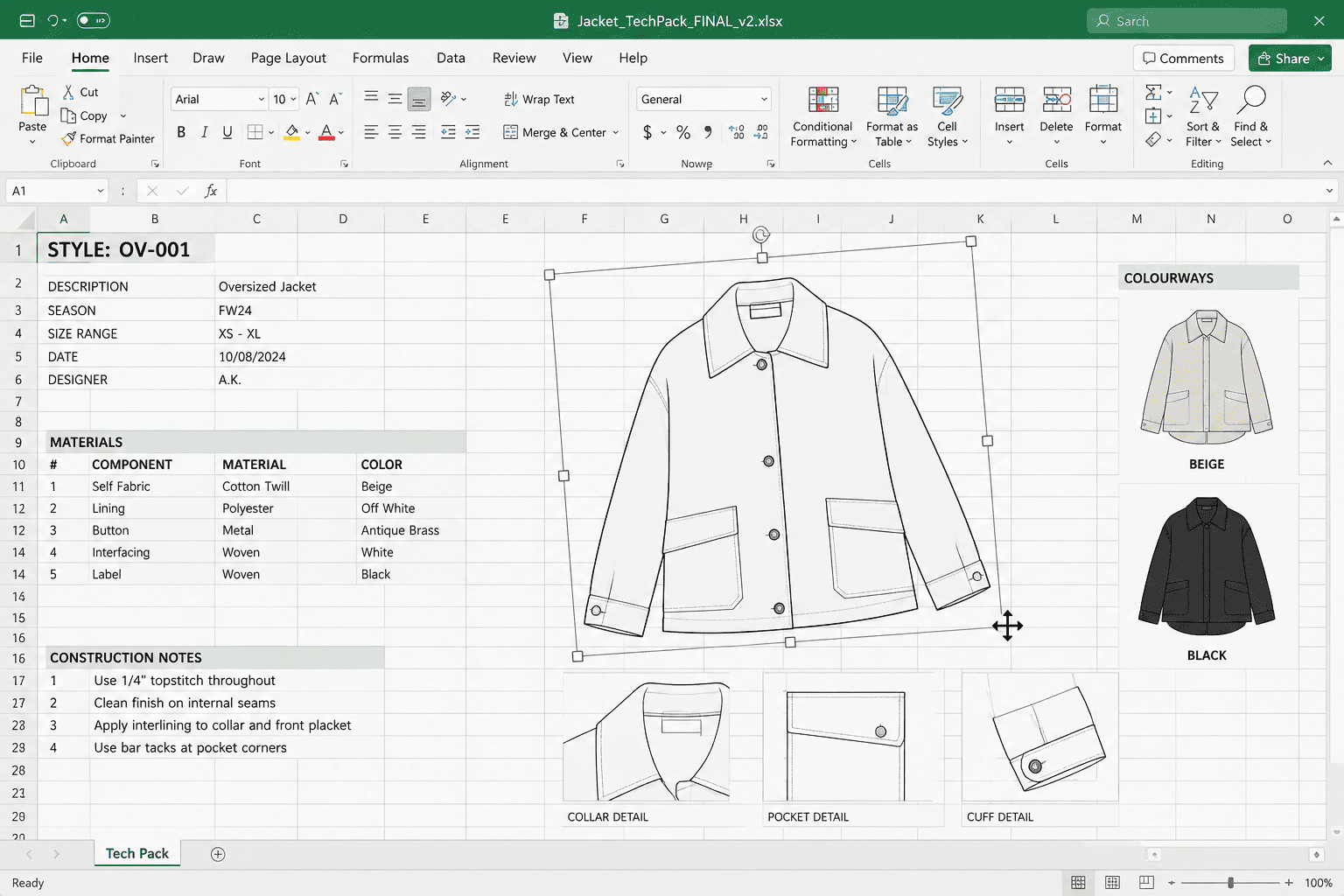
Every time you export a .tpv for factory sharing, that export is a timestamped record of exactly what you sent and when.
The .tp file holds your live editable version. The .tpv files are the evidence trail, a chronological log of every factory sent without any naming discipline required. You stop maintaining the system manually. The system maintains itself.
This is the practical difference between Excel and a dedicated tech pack editor at the version control level. In Excel, you are the version control system, relying on your own consistency to keep the record intact. In a dedicated tool, the record is a structural output of the workflow, not a discipline you have to sustain.
The .tpv is also purpose-built as a factory communication format. It is lighter than a PDF, read-only by design, and renders exactly as you built it on the recipient's end, with no layout drift from different print settings or screen zoom levels.
For context on why static spreadsheets are not factory-ready formats, this piece covers the shift in detail.
Start With the Messiest File You Have
The version control problem most small fashion brands are running is not an Excel failure. It is a format mismatch, where a general-purpose spreadsheet is doing the job of a structured, visual, revision-tracked technical document. No amount of disciplined naming conventions fully compensates for that structural gap.
The clean-start strategy works because it removes the migration anxiety entirely and replaces it with a single decision: stop adding new work to a system not designed for it, and start building in one that is. Pick your most complicated active style, rebuild it this week, and the difference becomes immediately clear.
Download Techpack Builder for free on Mac or Windows. No sign-up required. Open your messiest style and rebuild it this afternoon.
Other basic FAQ's
1. Do I have to move all my old Excel tech packs at once?
No, and doing so would be a waste of time. Your old files are historical records and function perfectly as archives in Excel. Rebuild styles in the new format only when they come up for active revision.
Apply the three-category rule: rebuild what is in active development, leave revision candidates until their revision starts, and archive anything that has cleared production. Most founders complete the full transition within one to two seasons without any dedicated migration session.
2. How do I keep my measurement data when switching tech pack tools?
There is no automatic import. You copy BOM and POM values from your Excel file into the new tool manually, using the old file as a reference while you rebuild. For a standard active style with 15 to 25 spec rows, this takes 30 to 60 minutes.
The rebuilt file is then in a structured canvas format that holds its layout when images are added, sections are resized, or the file is exported.
3. Is Excel still fine to send to factories?
Many factories accept Excel without issue, and switching tools does not require you to change the format you send.
The problem is not factory acceptance. It is internal: knowing which file is current, which was last sent, and what changed between versions. That confusion exists entirely within your own workflow, regardless of what format the factory accepts.
4. What happens to my Illustrator files when I switch?
Nothing. You continue building flat sketches in Illustrator and export as PNG or JPG when building the tech pack. There is no plugin, no file format change, and no new workflow to learn. Your Illustrator files stay where they are.
5. How is a tech pack editor different from PLM software?
A tech pack editor is a single-purpose desktop tool for creating and sharing factory-ready technical packages. PLM manages the full product lifecycle across teams, seasons, and supply chain systems, and typically requires implementation, training, and enterprise-level costs.
A tech pack editor downloads in minutes, requires no sign-up, and works offline. They serve different stages of scale: a tech pack editor is right for solo founders and small teams, PLM becomes relevant when the operation outgrows it.
6. I have a custom Excel template I have spent years perfecting. Do I lose that?
The template stays in Excel as a reference file. What you lose is the need to maintain it. A dedicated tech pack editor provides factory-ready templates already structured for every section a manufacturer needs.
The formatting work you were doing manually in Excel was compensating for a tool not built for this job. When you stop doing that work, you get that time back.