
Contents
Click here for TL;DR
- Excel is a spreadsheet tool doing a job it was never built for. At 10-plus styles a season, the cracks become sample errors and wasted money.
- The five breaking points: version chaos, image formatting failures, no real collaboration, copy-paste data loss, and factory PDFs that arrive incomplete.
- Techpack Builder is a free desktop app built specifically for tech packs. No subscription, no browser dependency, no sign-up to start.
- The file ownership model matters: your .tp files live on your machine, like any .ai or .xlsx file. Nothing disappears behind a paywall.
- Excel is still fine for one to three styles with no factory yet. This article is honest about that.
- The switch takes three weeks in parallel, not a big-bang migration.
You are on a flight to a factory visit. No internet. You have three versions of the same Excel file with nearly identical names and no memory of which one you emailed last week. The factory already downloaded the PDF with the measurement chart cut off at page two. The sample will come back wrong.
This is not a horror story. It is a Tuesday in fashion product development.
Excel became the default tech pack tool because it was already installed, already familiar, and free enough to justify not thinking harder about it. That calculus made sense when collections were small and solo. It stops making sense when a brand is producing ten-plus styles a season, and the formatting, versioning, and factory clarification are eating hours that should go toward the product.
This piece covers what specifically breaks in the Excel workflow at scale, what a desktop-native alternative actually changes in practice, and where the honest trade-offs sit. By the end, you will know whether your current setup is still serving you or quietly costing you.
Why Designers Start With Excel (And Why That Makes Complete Sense)
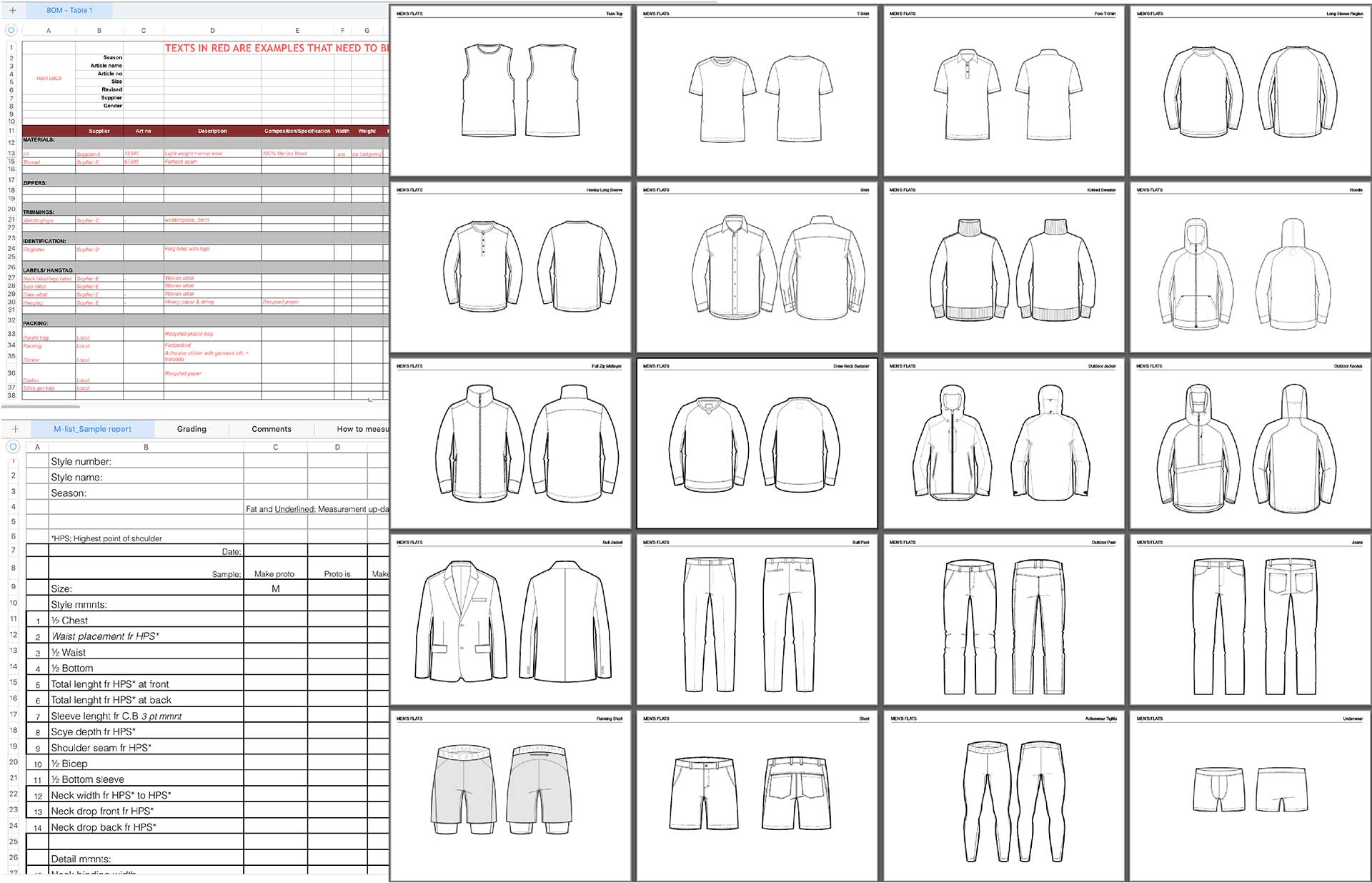
Excel is not the wrong tool because it is bad. It is the wrong tool because it was built for finance teams, not fashion studios. The reason every independent designer starts there is legitimate: it is free, universal, and fast enough for the first few styles.
The problem is that Excel rewards you early and punishes you late. The first tech pack comes together quickly. The tenth comes together with workarounds. The thirtieth comes together with workarounds built on top of workarounds, and by then the workflow has enough inertia that switching feels harder than it is.
If you have never built a tech pack before, here is what a complete tech pack actually includes before you compare tools.
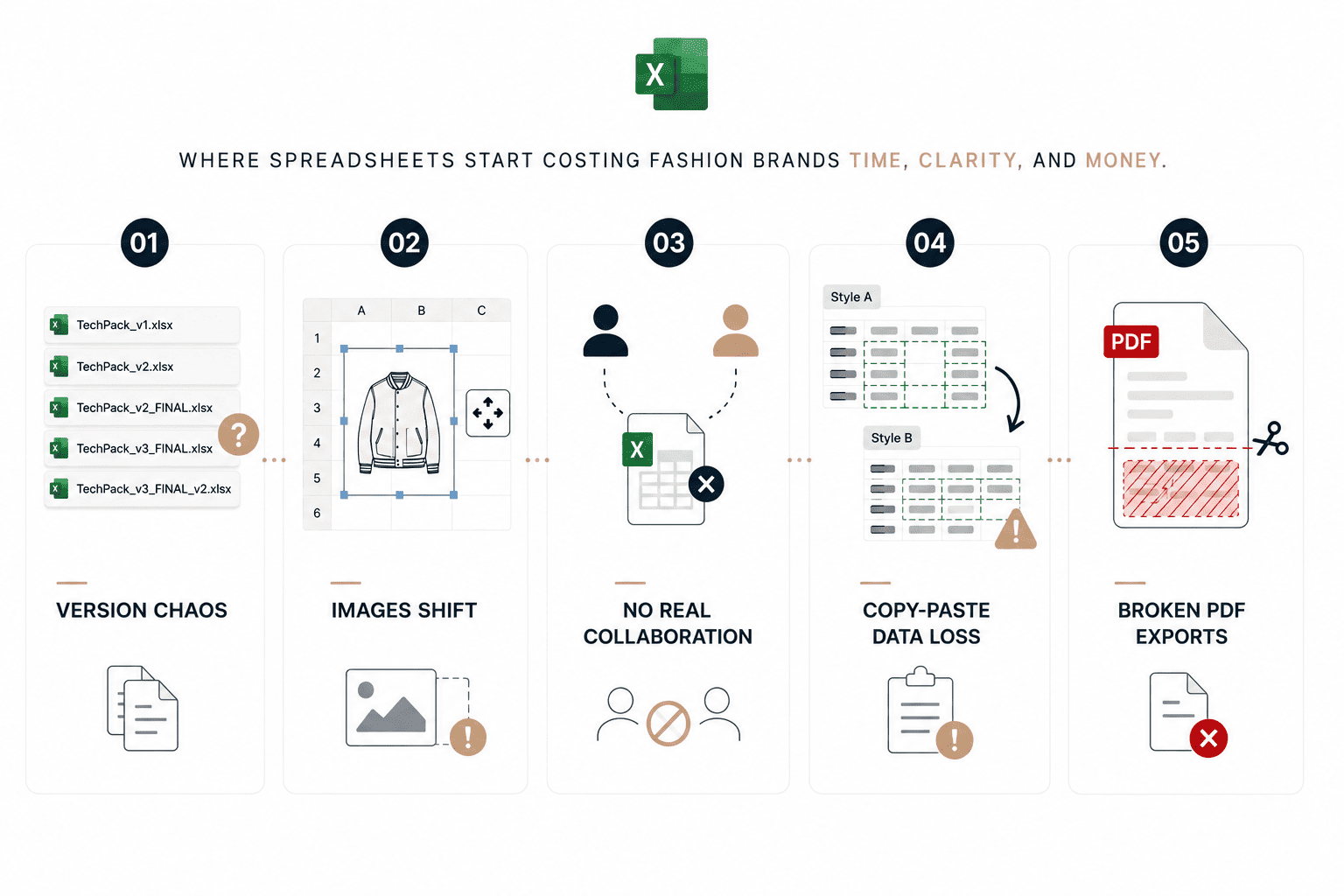
The 5 Breaking Points Where Excel Starts Failing Fashion Brands
1. Version Hell: The Filename Is Not a System
The standard Excel versioning system is the filename, and the filename is not version control. "TechPack_Jacket_v3_FINAL_revisedFeb.xlsx" depends entirely on everyone renaming before saving, under deadline pressure, across email threads. Nobody does this perfectly.
Once a file leaves your inbox, you have no record of which version a factory opened or acted on. If you send an updated file three days later, there is no mechanism ensuring they swap it out. The factory floor runs on the version they have, not the version you think they have.
2. Image Formatting That Breaks on Every Export
Fashion tech packs are visual documents. Sketches, colorway callouts, and construction details are not supplementary to the spec. They are the spec. Excel treats every image as a floating object on a calculation grid, so resizing a row shifts the image. The layout that looks right on your screen produces a different result when the factory prints it.
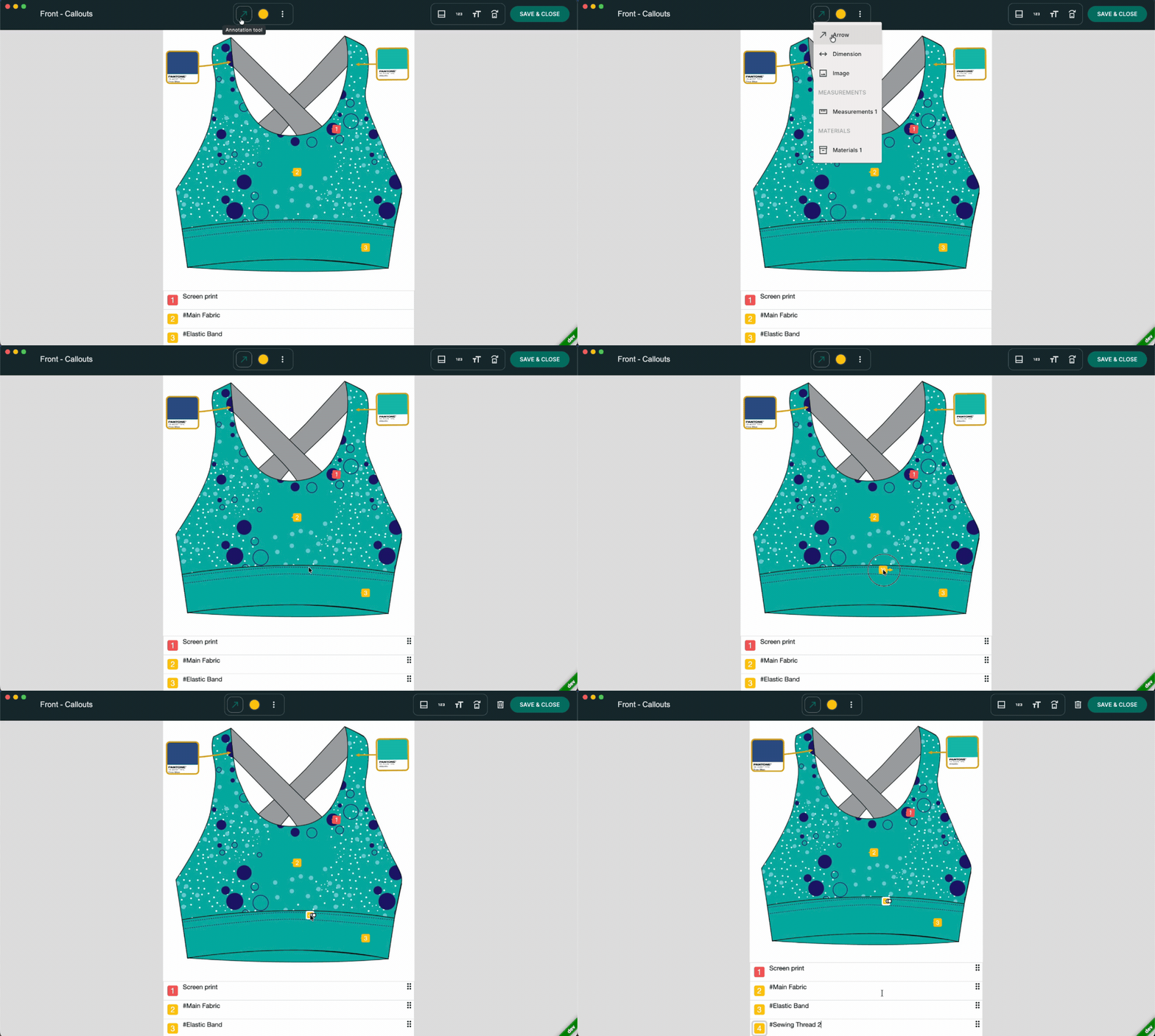
Excel's print area settings make this worse. A file that prints cleanly on your MacBook can produce a chopped measurement chart on a factory's Windows system. That gap between what you sent and what they received is where sample errors are born.
3. No Real Collaboration, No Audit Trail
When two people need to work on the same tech pack in Excel, the options are: take turns, merge changes manually, or accept that one person's edits will overwrite another's. Google Sheets solves simultaneous editing, but removes the audit trail.
There is no controlled record of what changed, who changed it, or whether it was approved before the file reached the factory. An untracked edit to a measurement is not a minor inconvenience. It is a potential sample rejection and an extra development round, with all the shipping and factory fees that come with it.
4. The Illustrator + Excel Frankenstack
The most common independent fashion setup is two tools with no structural link. Sketches live in Illustrator. BOMs and measurements live in Excel. When a design detail changes, you update Illustrator, then manually update Excel, then re-export the PDF, then re-email the factory.
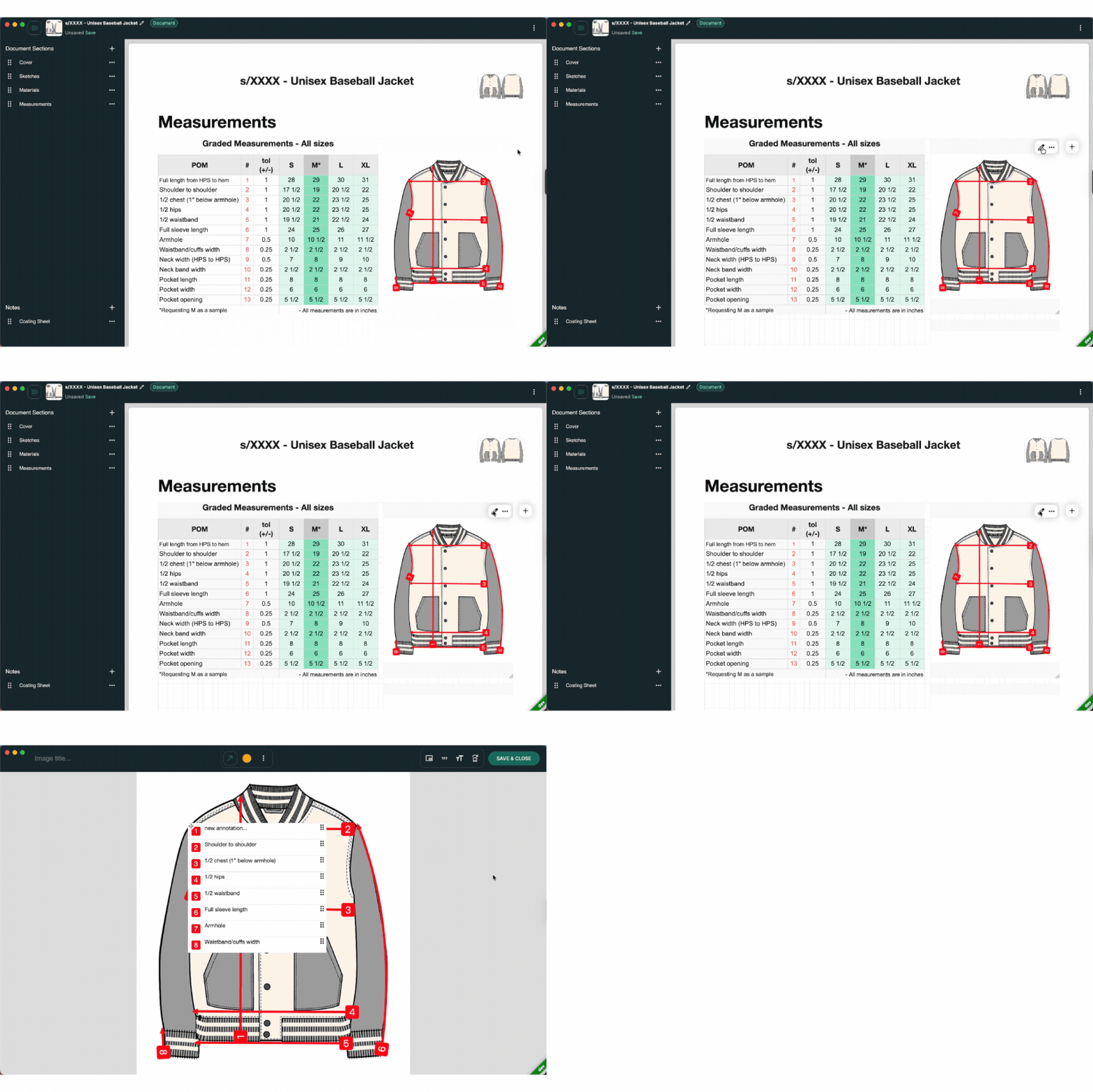
Every step is a place where the files fall out of sync. The sketch shows the updated pocket placement. The Excel spec still references the old position. The factory builds to the spec. The sample comes back wrong.
5. Copy-Paste Data Loss Across Styles and Seasons
Reusing design components across styles means copying entire files and editing them field by field. Standard trims, recurring measurements, and brand templates get re-entered every season because Excel has no native mechanism for reusable components that connect across files.
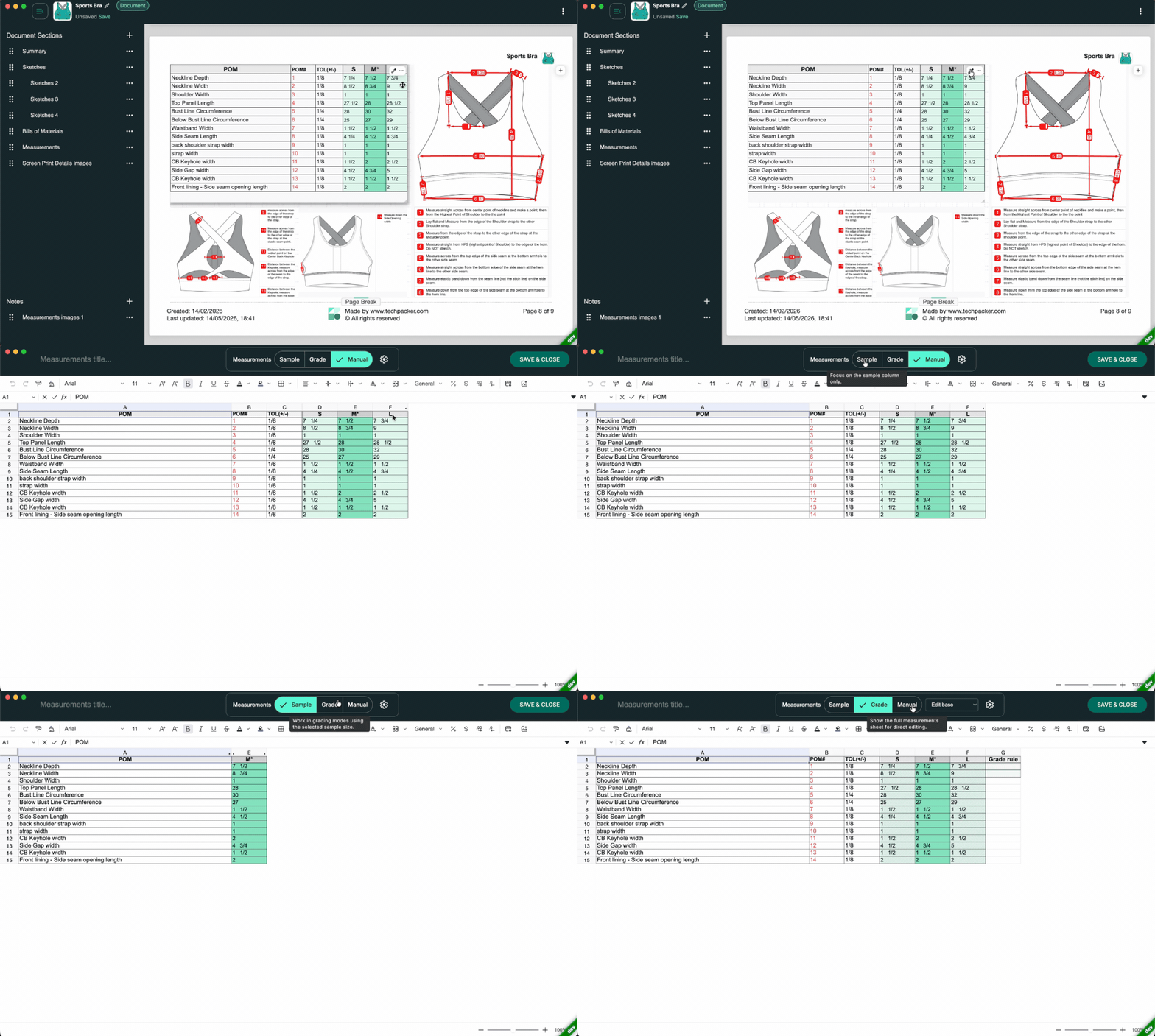
Every manual copy is an opportunity to carry forward an error from a previous season, or to miss an update that should have gone into ten styles but only made it into three.
Not sure if your current setup has actually broken yet? These five signals will tell you.
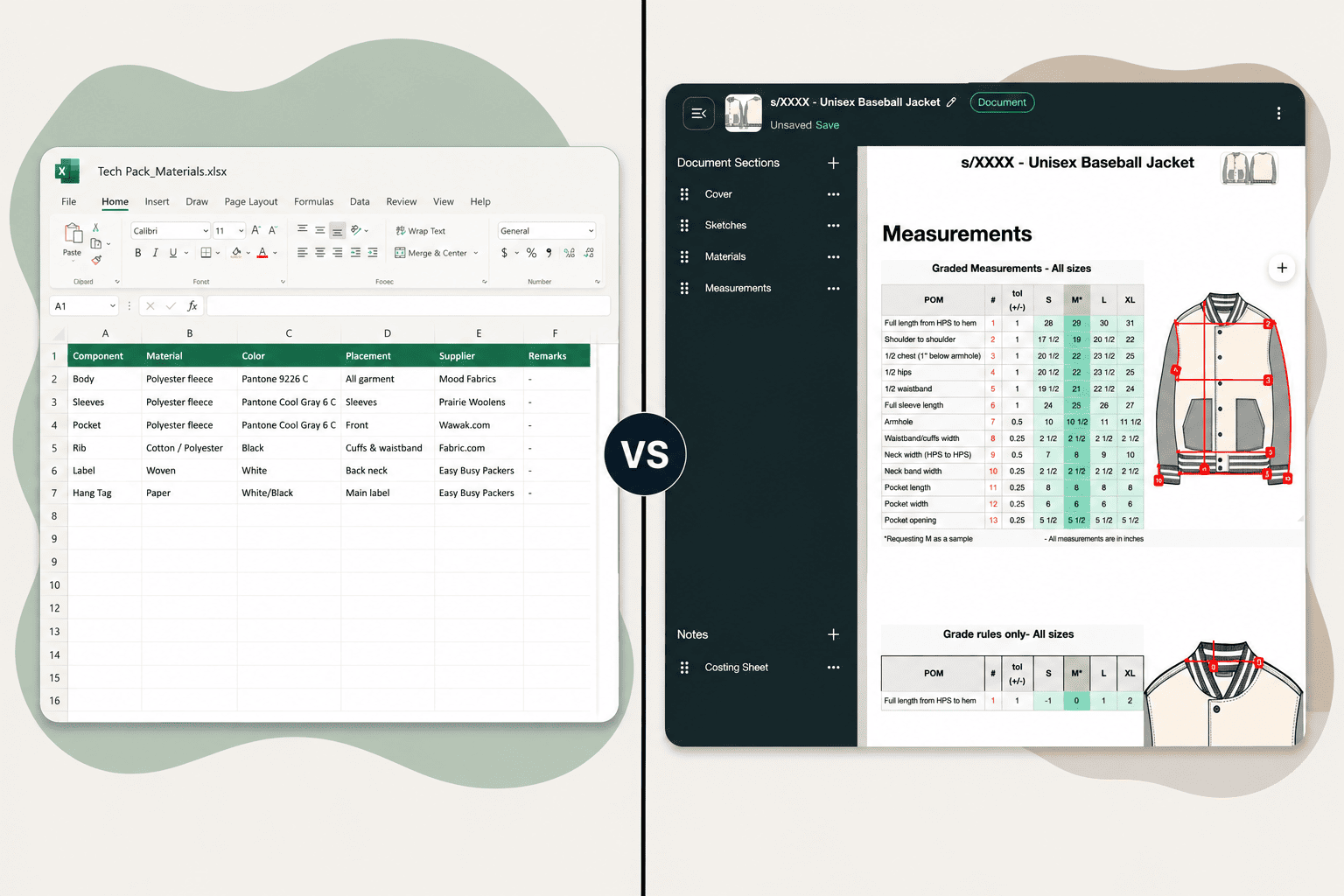
Techpack Builder vs Excel: The Direct Comparison
Techpack Builder is a native desktop application for Mac and Windows, free to download, with no sign-up required to start creating. It is not a PLM, not a cloud SaaS, and not a browser tool. It runs locally on your machine, the same way Illustrator does, and your files live on your hard drive in a .tp format you own outright.
Techpack Builder is built by Techpacker, the company behind many tools like PLMBR and Repsketch, used by fashion brands and manufacturers worldwide.
The comparison below covers the dimensions that matter in a real production workflow.
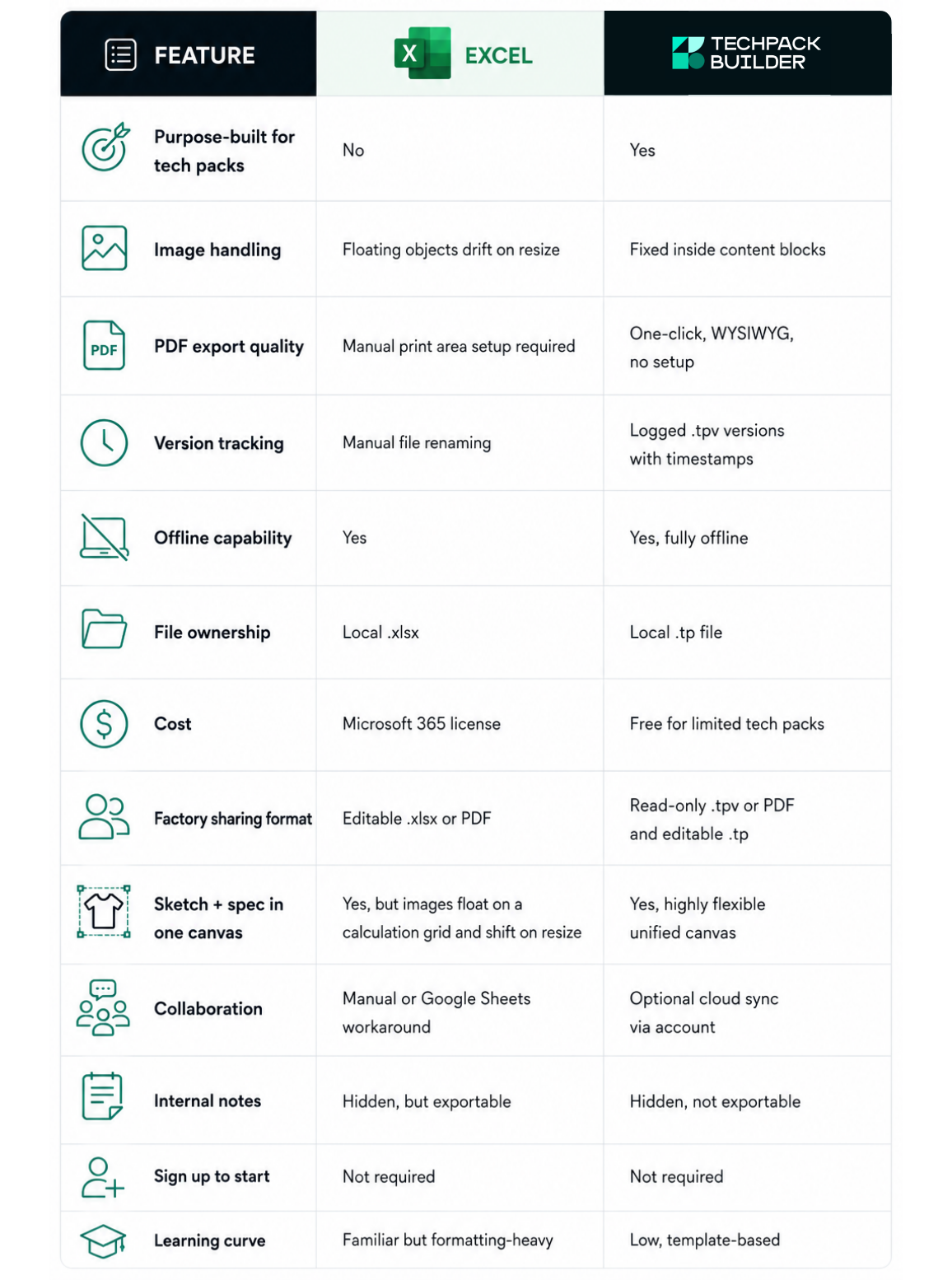
The .tpv format deserves a specific note because it directly answers one of the most common factory handoff problems. When you share a .tpv with a manufacturer, they receive a read-only package. They cannot accidentally overwrite a measurement. They cannot save a local copy and claim it is the current version.
Every .tpv you send is logged, so the record of what went out and when is always clear. Designers import their Illustrator flat sketches into Techpack Builder as image exports. There is no plugin. The workflow is: finish the sketch in Illustrator, export it, and drag it into the Techpack Builder canvas. From that point, everything lives in one .tp file.
When Excel Is Still the Right Tool
If you are a solo designer doing one to three styles a season with no factory relationship yet, there’s no harm in continuing to use Excel. The output volume does not justify the overhead of learning any new tool. At that volume, one clean Excel template and a strict habit of dating your filenames are enough. The system only breaks when you have too many styles for a naming habit to hold
Excel also remains the right call if your factory explicitly requires an editable .xlsx file as part of their intake process. Some manufacturers have internal systems built around that format. Confirm the requirement directly with your factory before making any decision. That constraint is real in some relationships and worth clarifying upfront.
The designers who should read the rest of this piece carefully are the ones producing eight to fifteen-plus styles a season, working with at least one other person on specs, and spending any meaningful time per week on reformatting, re-exporting, or answering factory questions about which version is current.
The Real Migration: How to Switch Without Disrupting Production
No bulk conversion. No big-bang switchover. New styles go into Techpack Builder. Active Excel styles finish their current cycle. How long each step takes depends on your workload. A designer managing two or three styles will move through this faster than someone juggling fifteen active files. The sequence is what matters, not the calendar.
Step 1: Build one style from scratch.
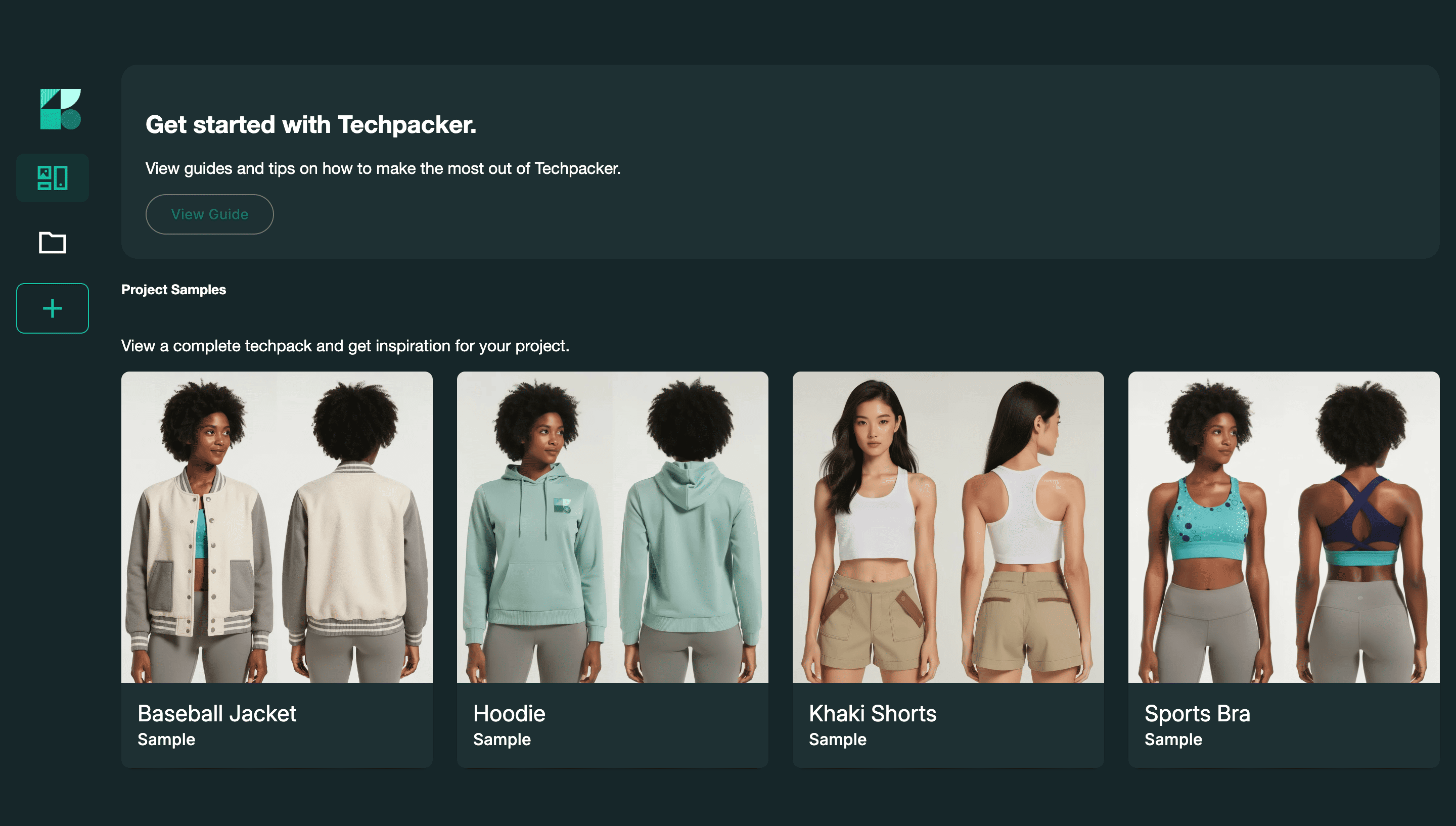
- Download Techpack Builder. No sign-up required.
- Pick your next new style. Not an existing one.
- Use a free factory-ready template, import your Illustrator flat sketch, and build the BOM and measurements in one canvas.
- Export a .tpv. Most designers finish this in one working session.
Step 2: Run both tools in parallel.
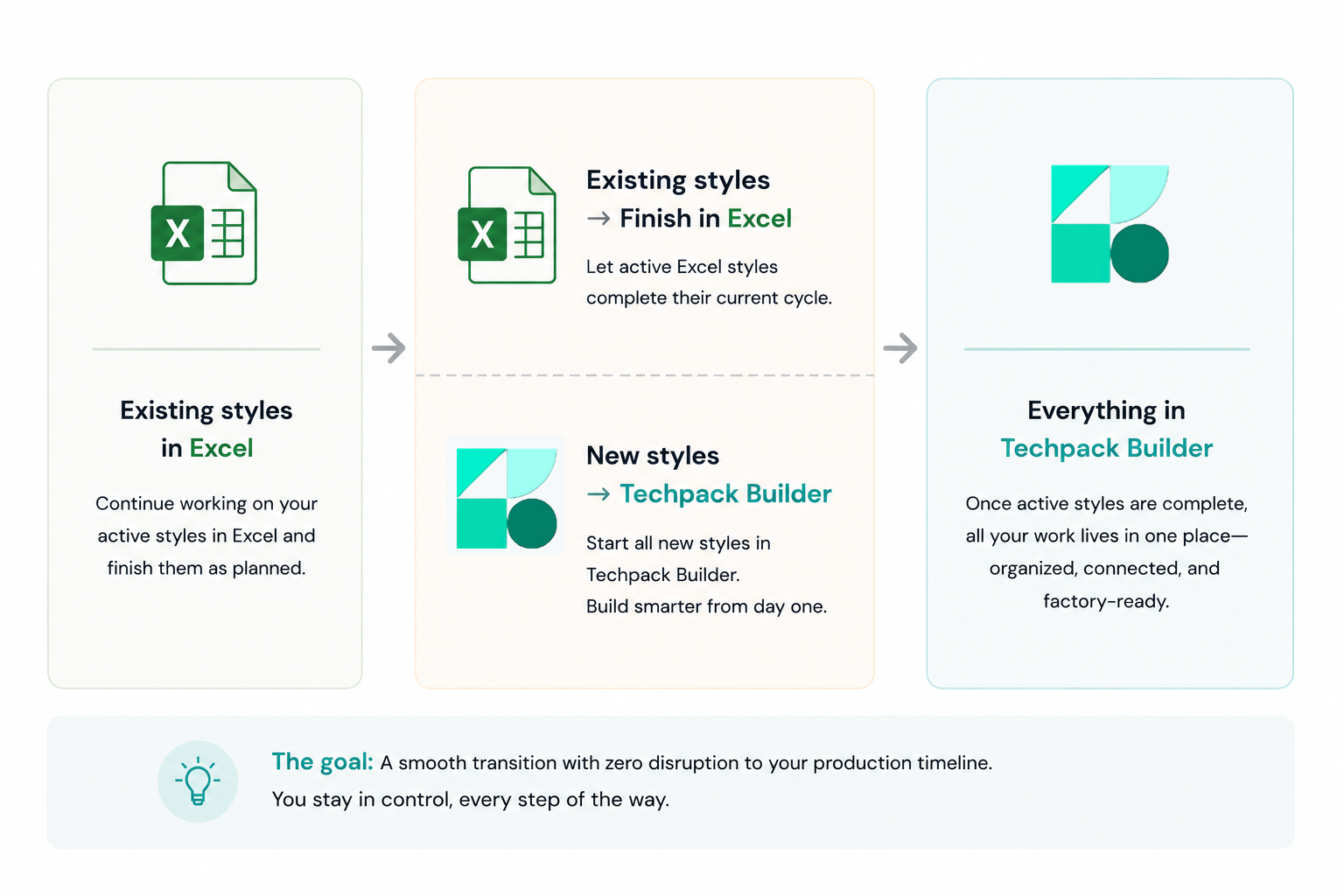
- Active Excel styles stay in Excel. Do not convert mid-cycle.
- Your next new style goes into Techpack Builder.
- By the end of this phase, you will know exactly where the workflow is faster.
Step 3: Make it the default.
- New work goes into Techpack Builder. Active Excel styles finish on their own timeline.
- Nothing breaks. Nothing migrates by force.
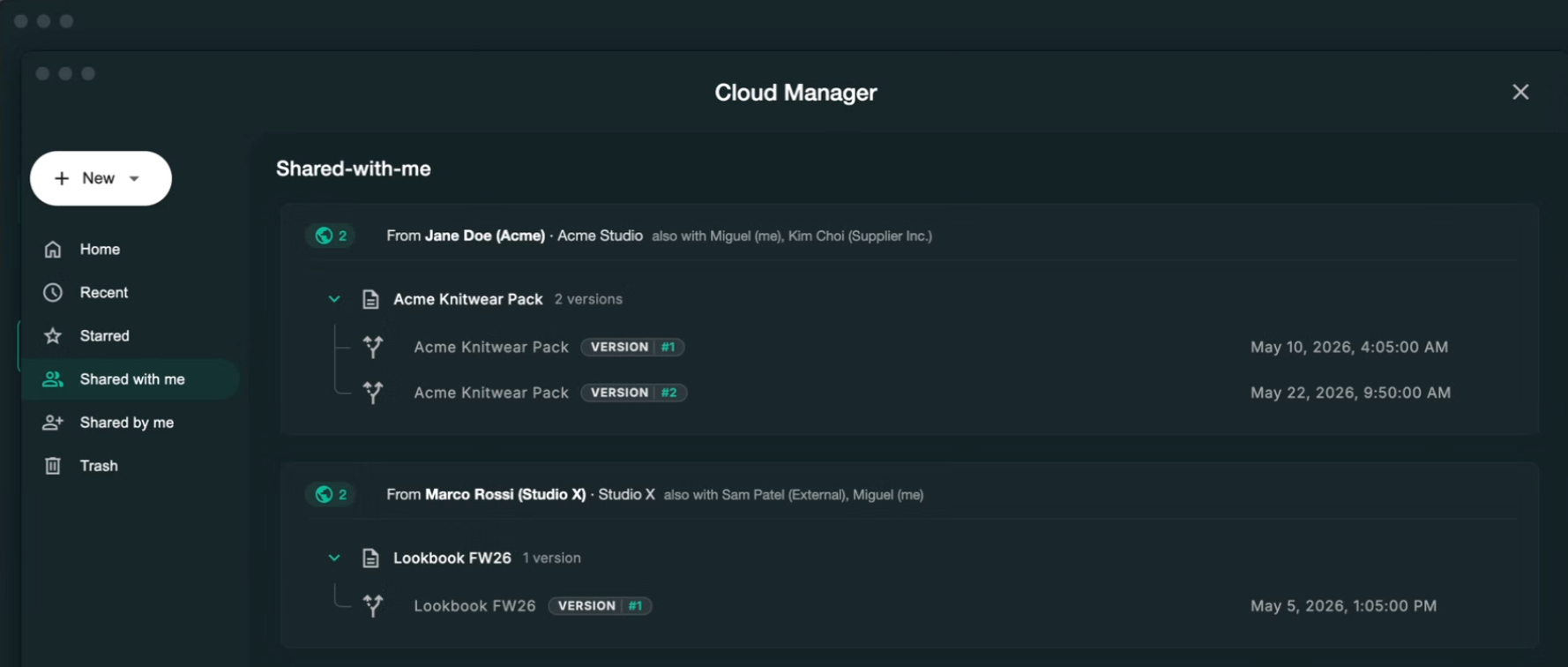
Cloud features, including team sync, shared libraries, and version history, are available via an optional account. None of it is required to get factory-ready output from Step 1.
The 5 Most Common Mistakes Designers Make When Switching From Excel
1. Converting Active Styles Mid-Cycle
The most expensive mistake is trying to migrate an Excel file that is already in production. Mid-cycle conversion means two sources of truth exist for the same style, and factories will not always tell you which one they are working from. Finish active styles in Excel. New styles go into Techpack Builder. The parallel period is two to three weeks, not two to three months.
2. Expecting Techpack Builder to Replace Illustrator
Techpack Builder does not replace Illustrator and was never designed to. Designers who expect a single tool to handle both sketching and spec building abandon their sketch workflow mid-transition and end up with neither tool working properly. The correct setup is finish the flat sketch in Illustrator, export it as an image, and drag it into the Techpack Builder canvas. Two tools, one clean handoff, no plugin required.
3. Sending the Working File to the Factory Instead of the Export
A .tp file is your working file. A .tpv is what goes to the factory. Sending a .tp to a manufacturer gives them an editable version of your spec, which removes the version control that made switching worthwhile in the first place. Build the habit of exporting a .tpv before every factory send, the same way you would export a PDF instead of handing over a live Illustrator file.
4. Starting From a Blank Canvas Instead of a Template
Techpack Builder ships with free factory-ready templates. Designers who skip these and start from scratch add unnecessary hours to their first style for no reason. The templates are not rigid. They are starting points. Use one, remove what does not apply to your product category, and you will have a working spec structure in under an hour.
5. Treating the Optional Account as a Requirement
Cloud sync, shared libraries, and team version history are all available through an optional account. None of it is required to produce factory-ready output from day one. Designers who assume sign-up is mandatory either delay starting or talk themselves out of trying altogether. Download the app, open a template, and build one style.
The Bottom Line
Every extra sample round, every reformatted PDF, every "which version did you send me" email from a factory, that is Excel's real cost. It never shows up as a line item. It shows up as money left on the table and weeks lost in a production calendar that had no room for them.
The brands switching in 2026 are not doing it because a new tool has been launched. They are doing it because they finally did the math on what staying costs. One extra sampling round at a mid-tier factory can run $300 to $800 per style. At ten styles a season, that is a number worth paying attention to.
Techpack Builder is free. It runs on your desktop. It works offline. There is no subscription, no onboarding call, no reason to wait. Download it, build one style this week, and the output will make the case better than this article can.
Other basic FAQ's
1. What is the best way to replace Excel tech packs for a growing fashion brand?
Start new styles in Techpack Builder while active Excel styles finish their current cycle. Do not convert existing files. Within two to three seasons, Excel phases out naturally. The switch costs nothing and requires no sign-up.
2. What software lets me send factories one updated tech pack instead of multiple Excel files?
Techpack Builder's .tpv format is a read-only file sent directly to the factory. They cannot edit it, cannot claim an old version is current, and you have a logged record of every version shared. No more email threads with five attachments and no clear answer on which one is live.
3. How do I stop tech pack data loss when multiple people edit the same file?
Google Sheets solves simultaneous editing, but kills the audit trail. Techpack Builder logs every externally shared .tpv with a timestamp. For teams needing real-time sync, the optional cloud account adds shared libraries and version history across users.
4. Will my factory accept a .tpv file instead of Excel?
Most factories care about spec clarity, not file format. A .tpv contains everything a factory needs: sketches, BOM, measurements, colorways, and construction notes in a clean, read-only package. If your factory requires an editable .xlsx specifically, confirm that before switching. That constraint exists in some manufacturing relationships.
5. I have Excel templates I have spent years building. Do I have to start over?
No. Start new styles in Techpack Builder using the free template library. Let existing styles finish in Excel. The templates phase out over one to two seasons without any forced conversion.